Find a Driver
Convenient features on the DRIVER CONNECT page help you find and select a driver. The same features are available in other pages wherever you need to find a driver, for example, when assigning or offering a load. You can search for a driver by name, e-mail, or ID and you can find drivers marked as favorites.
 Select a Driver
The following steps apply every time you want to work with a driver. You must first find and select a driver.
When you have fewer than ten (10) drivers in the system, selecting a driver is easy; however, when you have dozens of drivers to manage, finding the right one can be a challenge. Velocity+ provides several features to help you search, find, and select drivers.
-
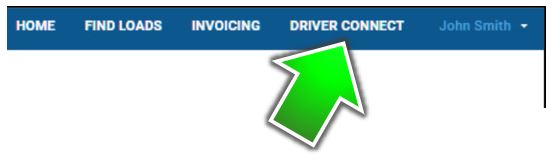
In the main menu, click DRIVER CONNECT.
-
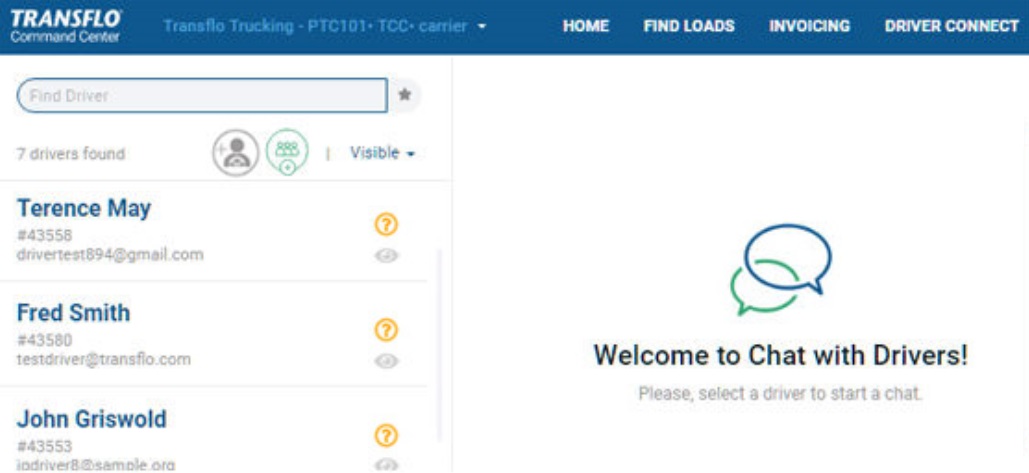
The DRIVER CONNECT page appears. Because you have not yet selected a driver, you see only the generic welcome message on the right.
-
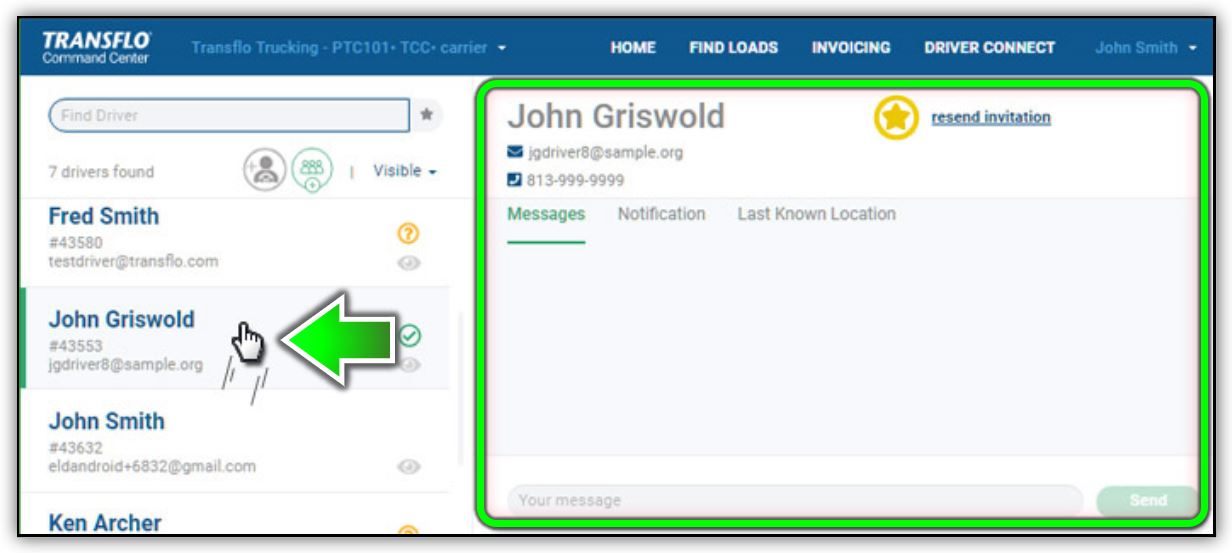
You must select a driver on the left to see the options for that driver on the right. Scroll up or down in the list of drivers and select a driver. The green bar at the left edge of the page indicates the currently selected driver.
-
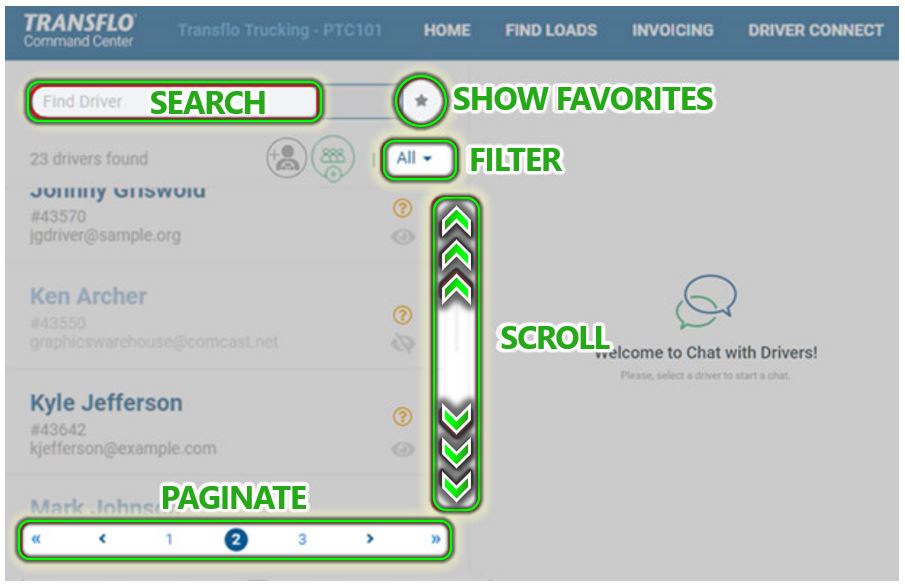
When simple scrolling up or down isn't enough to find the right driver among many drivers, use one or more of the other methods described on this page:
-
Filter drivers by their visible (show/hide) status
-
Search for a driver by name, email, or ID
-
Show favorites
-
Navigate a multi-page list of drivers (paginate)
-
Filter Drivers by Their Visible (Show/Hide) Status
Use this option to filter the list of drivers that appears on the left side of the page.
-
In the main menu, click DRIVER CONNECT.
-
By default, the filter shows visible drivers. For example, the page shows only seven (7) visible drivers out of a total pool of 15 drivers. Seven (7) drivers are set to show and eight (8) drivers are set to hide. To change the filter, click on Visible or the small drop-down triangle to open the visibility filter pop-up menu.
-
In the Visible filter menu, select All Drivers.
-
The page shows all drivers, both visible and hidden. For example, in the image below, 13 total drivers appear (13 drivers found). Some are visible and some are set to hidden, as shown.
-
To find a hidden driver, click the visibility filter menu and select Hidden Drivers.
-
In this example, six (6) hidden drivers are shown. Note that you cannot select hidden drivers. To work with the entry for a hidden driver, you would have to reset the driver visibility to show.
Tip: Most of your time will be spent working with visible drivers. Hidden drivers cannot be assigned to any loads. Hidden entries typically represent old e-mail addresses or drivers no longer working for the carrier. To show or hide drivers, see Advanced: Manage Drivers.
Search for a Driver by Name, E-mail, or ID
You can enter a short search name, number, or series of characters (called a search string) to find matching entries.
-
In the top menu bar, click DRIVER CONNECT.
-
Click inside or press the Tab key to go to the Find Driver search box.
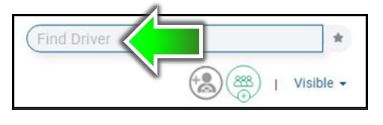
-
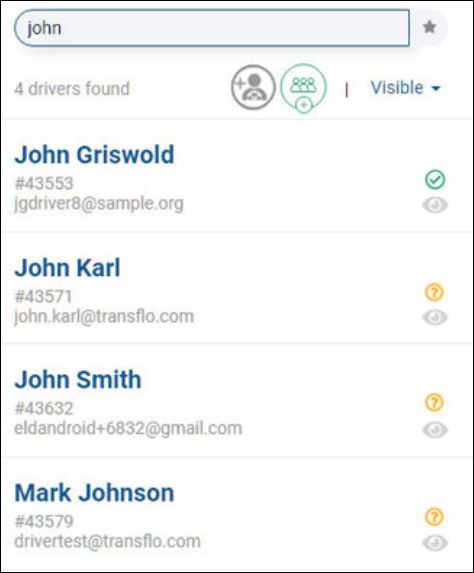
To search by name (first or last) or e-mail address, enter one or more characters. As you type, the system finds matching entries. In this example, a search on john finds four (4) drivers (see 4 drivers found below). Three (3) drivers have a first name of John and one (1) has a matching last name of Johnson.
-
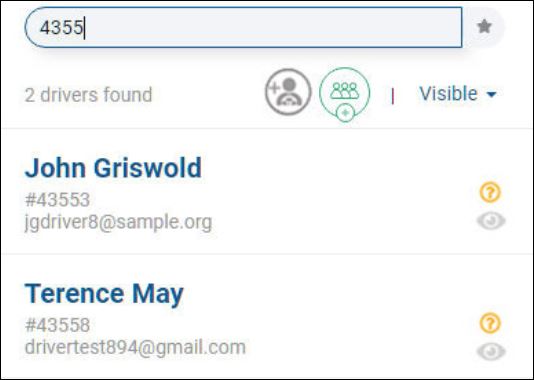
To search by driver ID, enter all or part of an ID number. For example, a search on 4355 finds matching entries for John Griswold (driver #43553) and Terence May (driver #43558). Enter the full ID for an exact match on one (1) driver entry.
-
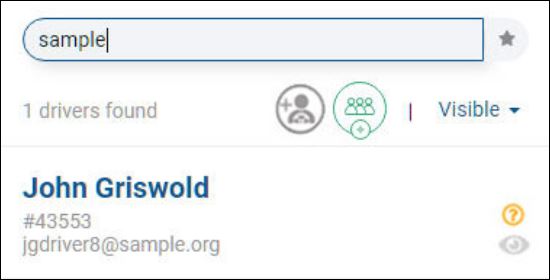
To search on all or part of the e-mail address, use the same search method for first and last names. In this example, enter sample to find John Griswold whose e-mail address contains the matching string in the sample.org domain.
-
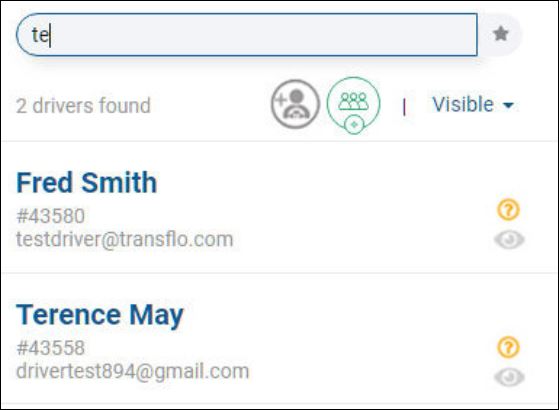
The same search string can match a name or e-mail address. Therefore, try to be more precise when searching. For example, as you type te, the system finds Terence May (matching on the first name) but also finds Fred Smith (matching on the first two characters of his e-mail address).
-
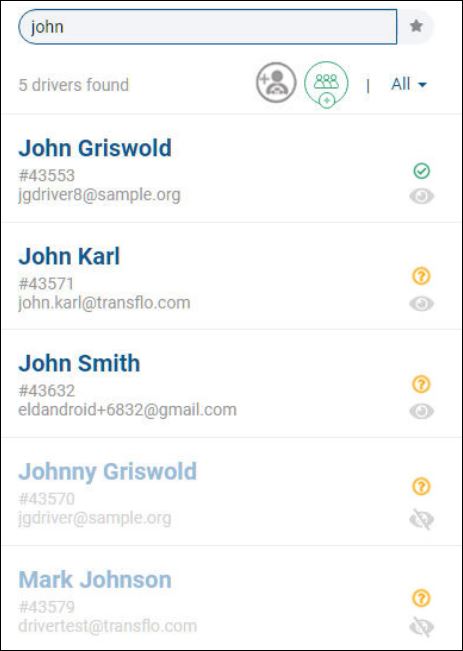
When you search with the visibility filter set to All Drivers, you see matching entries for both visible and hidden drivers.
-
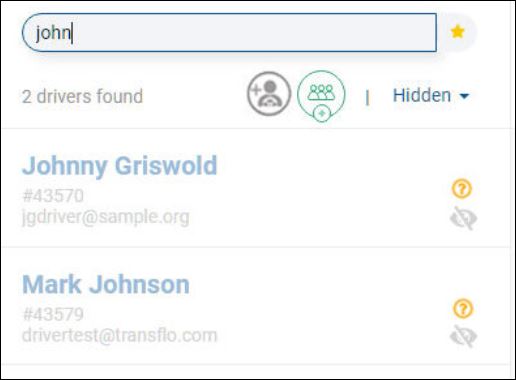
As a rule, the concept of hidden favorite drivers might not help you much. We recommend removing favorite status from a driver before or immediately after you hide them. (How? In this example, you would find hidden favorites, set these 2 drivers to visible, remove their favorite status, and then hide them again to avoid seeing them in the future as favorites since they are hidden drivers.)
-
This final step demonstrates what happens when you combine certain options. For example:
-
Set the visibility filter to All Drivers.
-
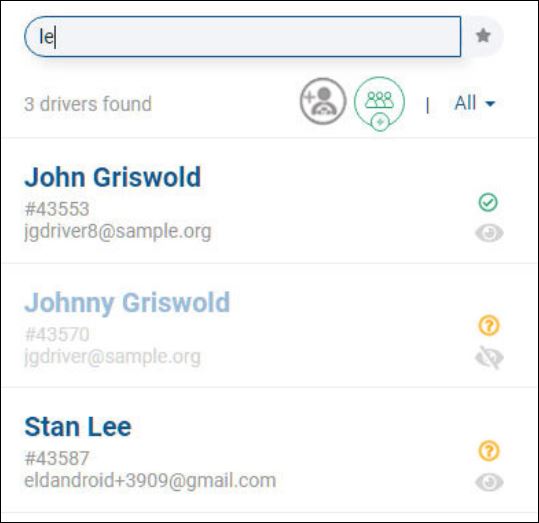
Enter the letters le in the search box. The system finds 3 drivers.
-
Click Show Only Favorites. The system now finds 2 drivers. This combination of options represents the following request: "Out of the pool of all drivers, show me only my favorite drivers with the matching string of letters le in their name or e-mail address."
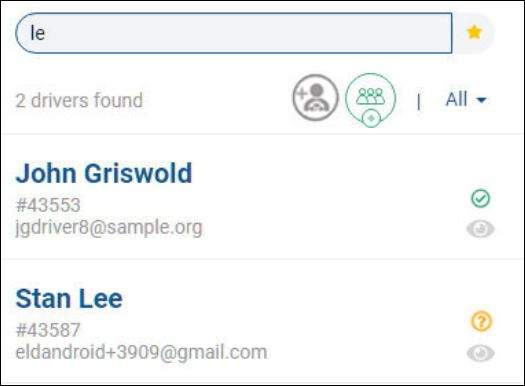
Tip: The sequence given in the previous step is required when you use the Show Only Favorites option. Always enter your search string first, and then click the Show Only Favorites option, in that order. If you click Show Only Favorites first, and then type a name or text string, a new search is performed (and shows all results, not just favorites). To see the favorites with that name, click the favorites icon twice. For example, if you click Show Only Favorites first and then type john, the system shows four (4) matching drivers, but all four (4) are not true favorites.
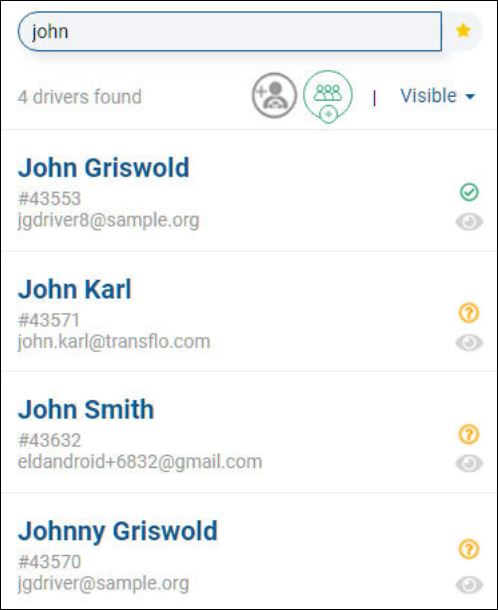
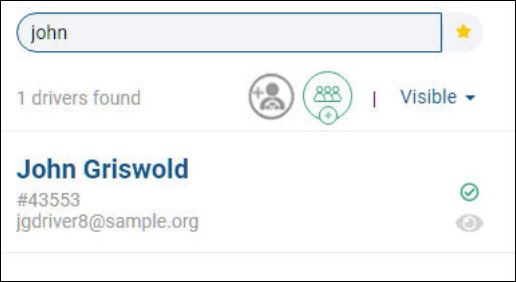
Click Show Only Favorites again twice to turn it off and then back on again. The first click turns off favorites. The second click selects the favorites. Now you see the one true favorite driver (matching john) in the list.
-
Find Drivers Marked as Favorites
Instead of searching for drivers in a pool of dozens of potential matches, you can designate a smaller set of pre-selected favorites and search inside only that subset. To find your favorite drivers, follow the steps below.
-
In the top menu bar, click DRIVER CONNECT.
-
The DRIVER CONNECT page appears. You have not yet selected a driver.
-
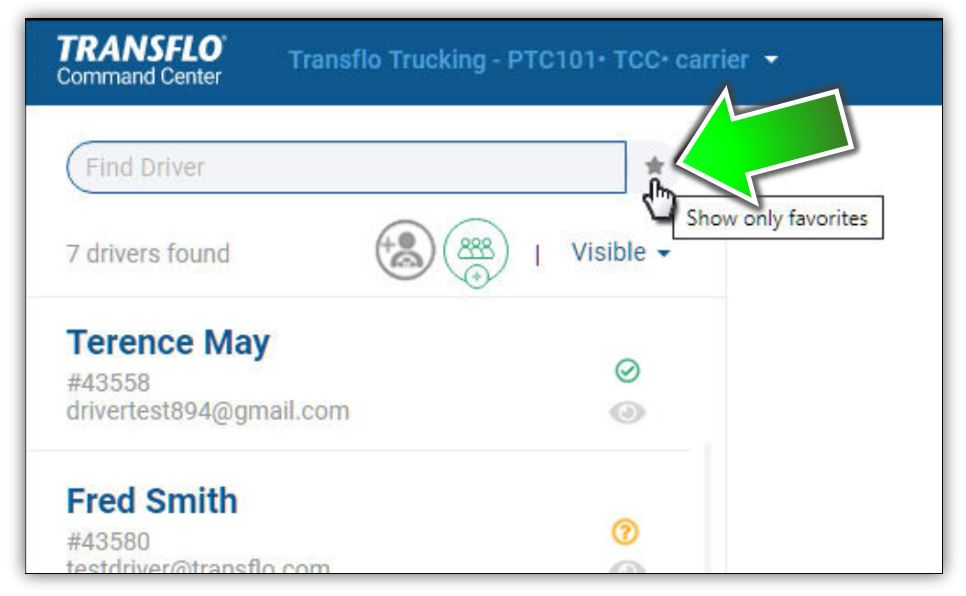
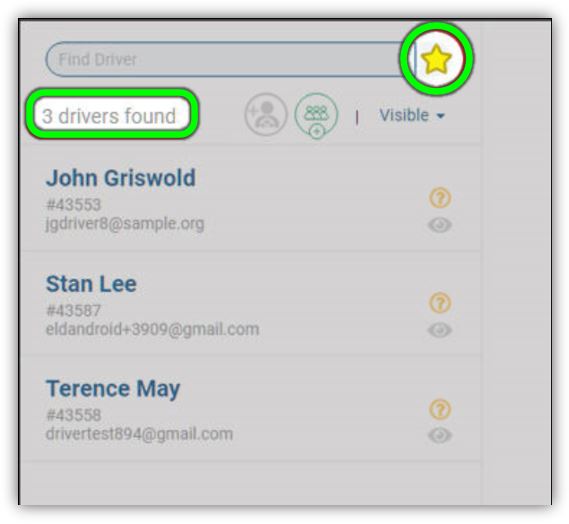
Click Show Only Favorites.
-
The yellow star indicates you are in Show Favorites mode. The number of favorites appears (for example, 3 drivers found).
-
You can also confine a search within the set of favorite drivers. For example, out of all drivers, a search for john finds five (5) drivers as shown at left but the same search finds only two (2) drivers when you click Show Only Favorites to restrict the search to only your favorite drivers as shown at right.
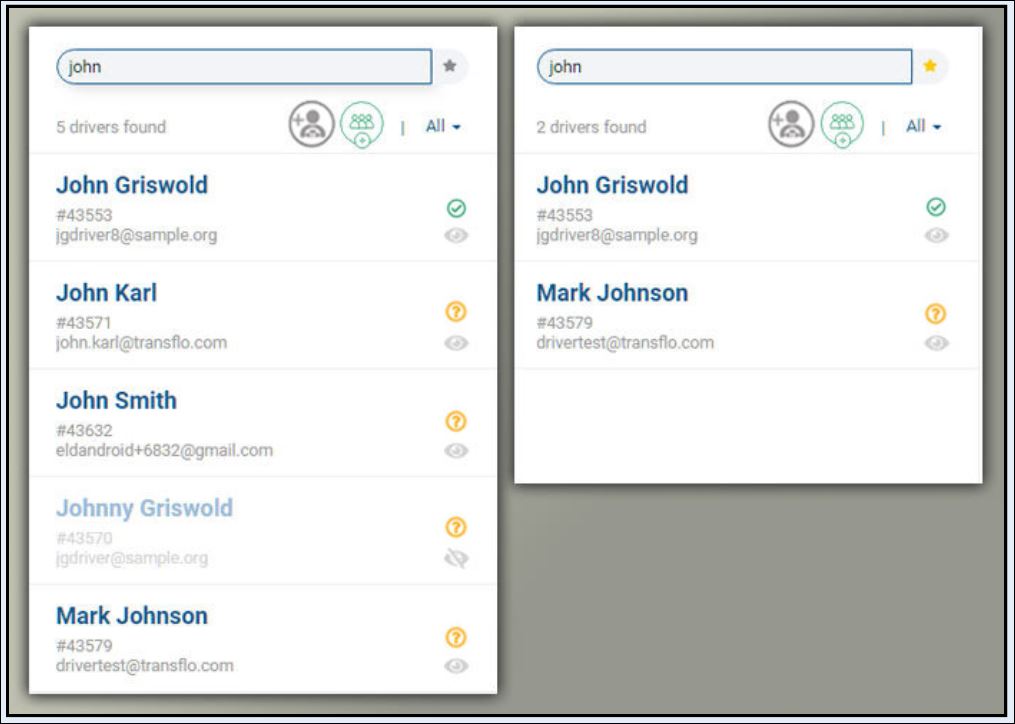
Tip: If you want to search favorites, always enter your search string first, and then click the Show Only Favorites option, in that order. Or, simply click Show Only Favorites twice to accomplish the same thing and establish the correct sequence.
Navigate a Multi-Page List of Drivers
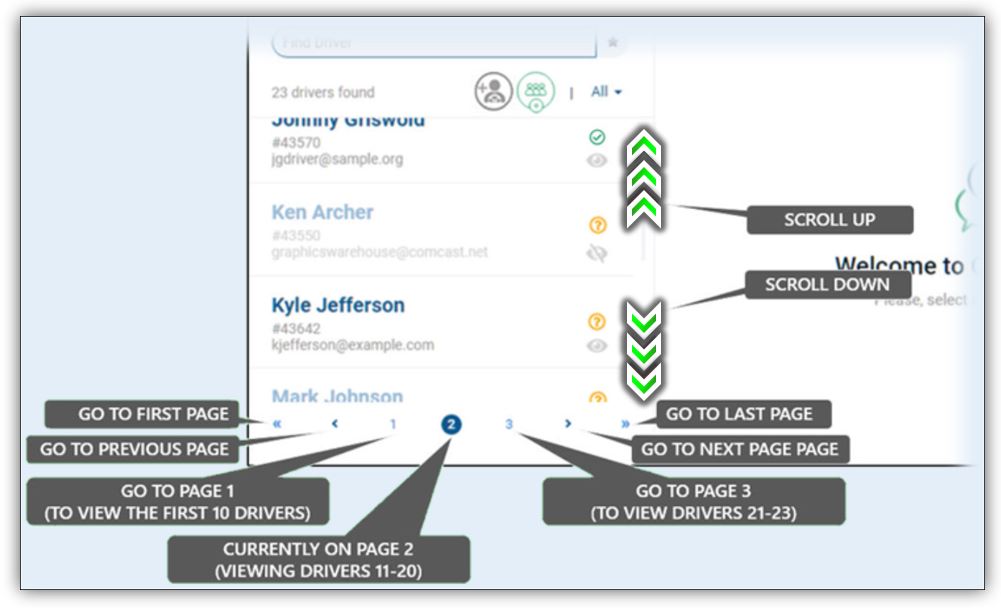
When you add more than ten (10) drivers, the system uses pages to show up to ten (10) drivers per page. The pages you see are determined by the number of drivers in your system.
-
In the main menu, click DRIVER CONNECT.
-
In the Visible filter menu, click All Drivers. We use All Drivers in the example images; however, you can also have multiple pages for Visible Drivers or Hidden Drivers if you have more than ten (10).
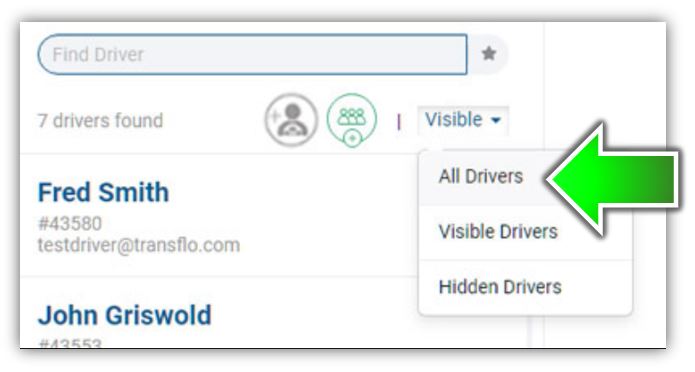
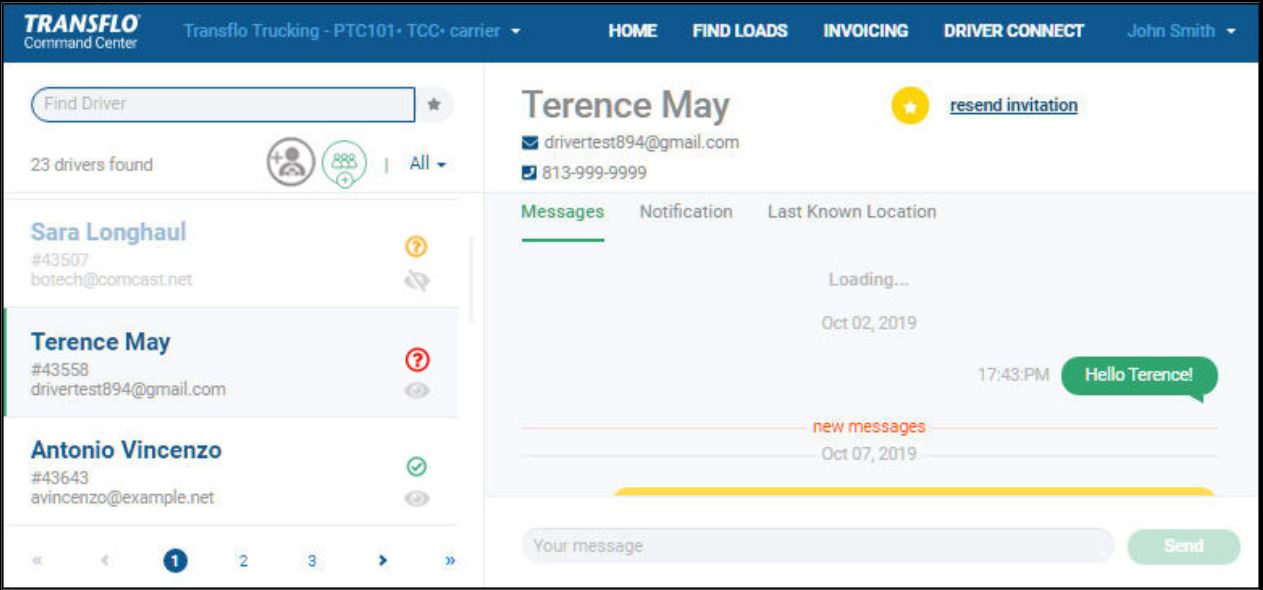
Example A: In this example, we see 23 drivers on three (3) pages.
-
Click a pagination option below to go to a given page of drivers.
- Page 1 shows drivers 1-10
- Page 2 shows drivers 11-20
- Page 3 shows drivers 21-23
-
Scroll up or down on that page to find the driver that you want to select.
Example B: In this example, we navigated back to page 1, scrolled down, and selected driver Terence May.
-


