Assign or Offer Loads to Drivers
-
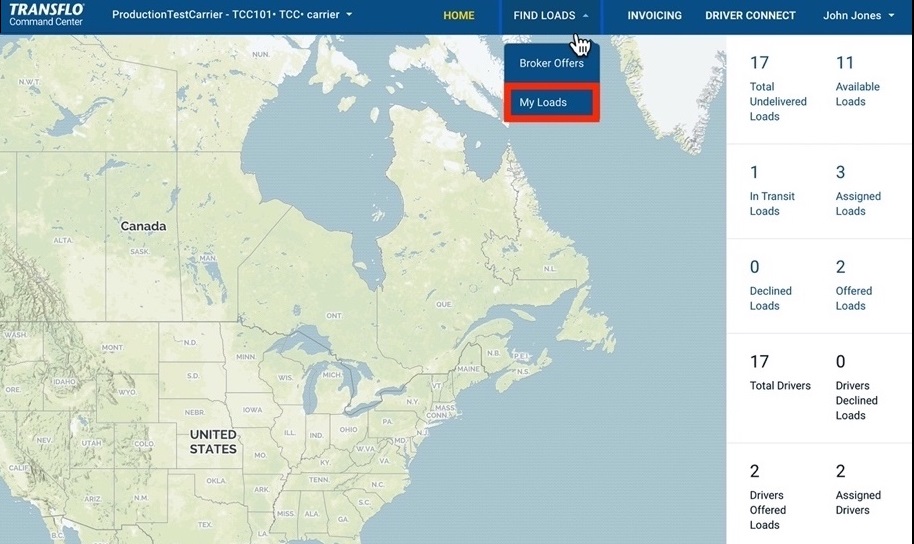
In the top menu bar, click FIND LOADS and then choose My Loads.
-
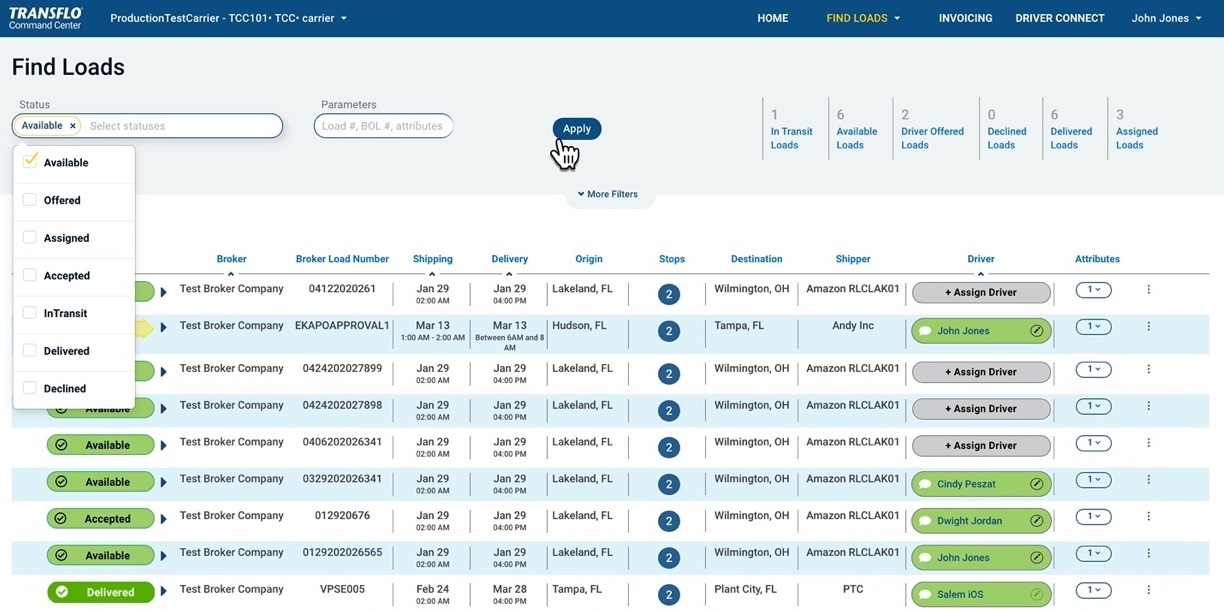
On the My Loads page, search for Available loads in the Status field.
-
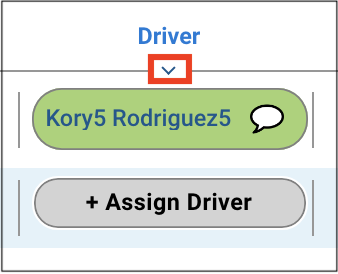
To sort loads by driver, click the blue arrow under the Driver column.
-
To assign a load to a driver, click +Assign Driver.
-
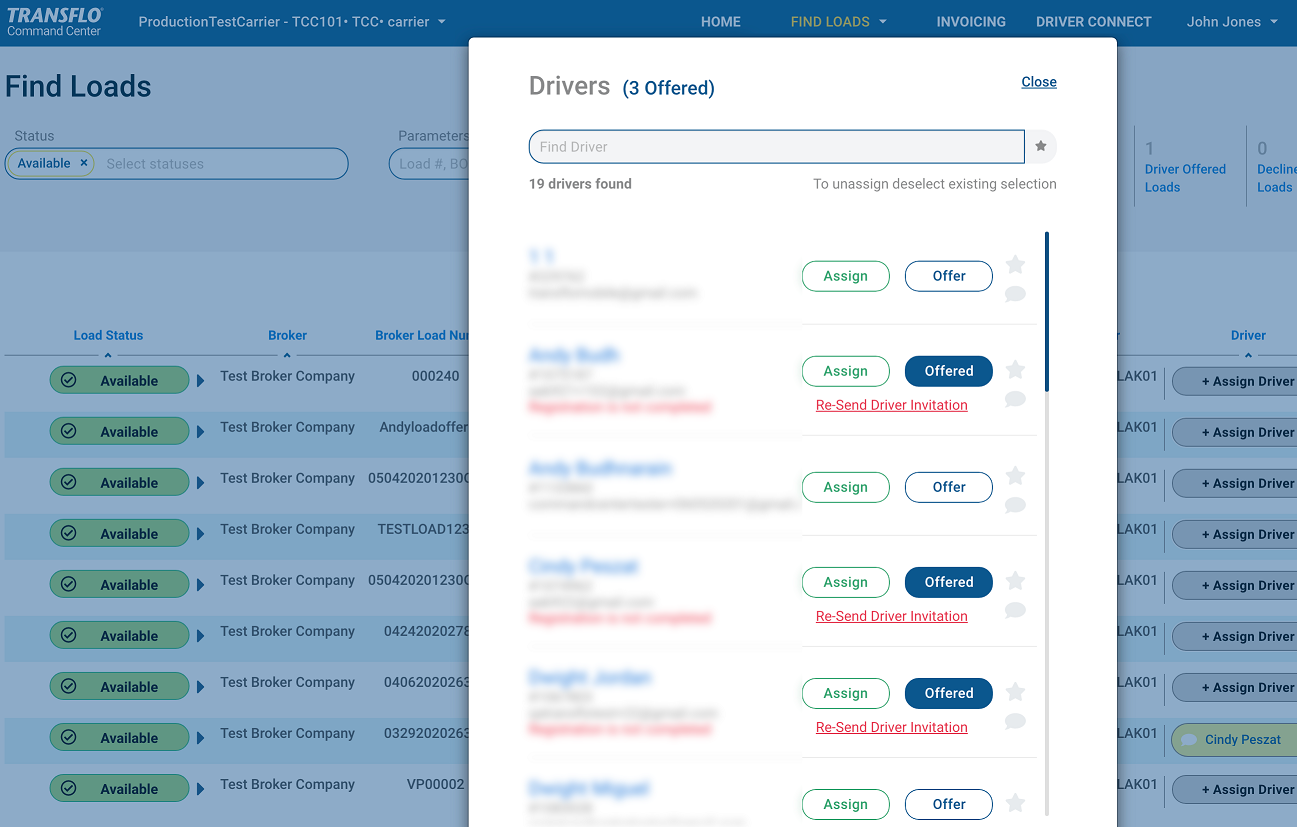
On the Drivers page, search for one or more drivers and then click Assign or Offer. You can assign a load to only one driver. You can offer a load to one driver or to multiple drivers.
-
The dark blue Offered status appears next to each driver who was offered the load.
-
To cancel the offer, click the blue Offered button again next to a specific driver.
-
-
In their mobile app, the drivers can choose to Accept or Decline each offered load.
-
In Velocity+ and the Mobile+ app, the early bird gets the worm! Drivers see their offers in the mobile app under the Available loads section. The first one to accept the load in their mobile app receives the load assignment. The offer is then automatically removed from the Mobile+ app of the other drivers.
-
In scenarios where you make offers to multiple drivers, after an offer for a load is accepted by the first driver to respond, the status of the load switches from Offered to Accepted or Assigned. After the first driver accepts a load offer, the remaining drivers no longer see the available offered loads.
-
 View a demonstration of these steps in one or more Transflo videos:


