HOS Admin Reports and Driver Logs [fleet retail retailadmin administrator gtportal]
As a fleet administrator or safety and compliance manager, you can view, add, or edit driver hours-of-service (HOS) logs and generate driver availability, compliance, and violation reports.
 View Driver Logs [fleet retail retailadmin administrator gtportal]
-
Log in to your Transflo Telematics portal.
-
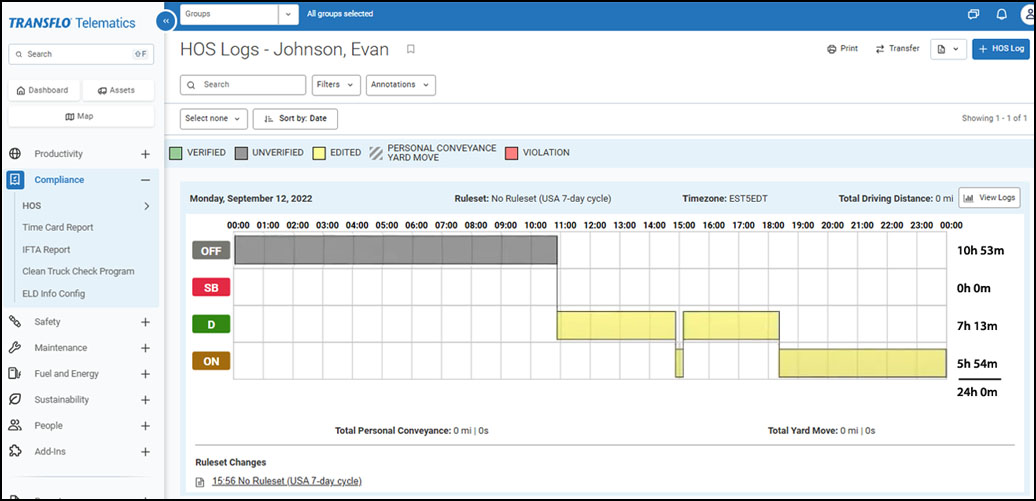
In the left navigation pane, expand Compliance, select HOS, and then click Logs.
Add a Driver Log [fleet retail retailadmin administrator gtportal]
If a driver has missed changing a status, for example, forgets to log off duty at 5:00 pm, an administrator will need to add a log or he will still be on duty from the day before.
-
Complete the steps above to View Driver Logs [fleet retail retailadmin administrator gtportal].
-
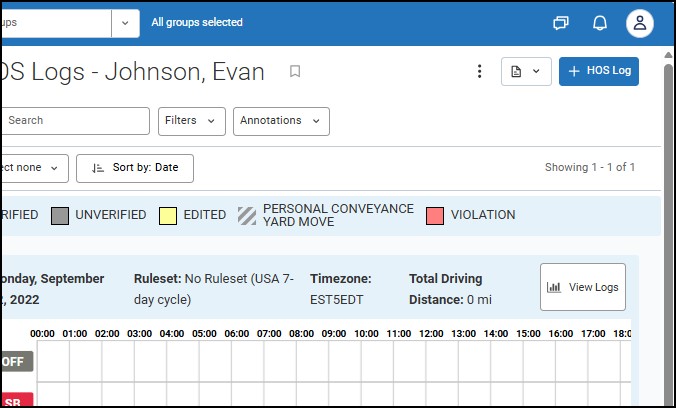
Click the + Add HOS Log button at top right.
-
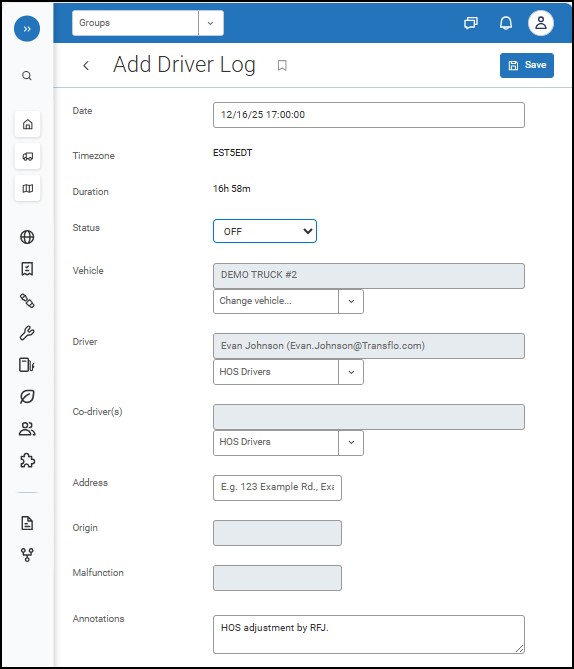
Complete the Add Driver Log page:
-
Click the Date field to open a calendar. Select the date and time for the new log.
-
In the Status field, choose an HOS status such as OFF, ON, SB, or D from the list of values.
-
Select the Vehicle, Driver, and any Co-driver(s). Each vehicle has one device.
-
If needed, edit the Address.
-
Enter your comments or notes about the new log in the Annotations field.
-
-
At top right, click Save.
-
A confirmation window appears:
You are about to modify an HOS Log for the driver:
example-driver@example.test
Before the edit is registered in the system, the driver must accept or reject the changes. The availability of the driver will not change until the driver has accepted the requested edit.
Are you sure you want to request the edit?
Click OK to add the log or Cancel to go back to the Add Driver Log page where you can make corrections and click Save again.
(Optional: If you want to discard your edits and completely cancel adding the log, click Cancel and then click Back.)
- If you click OK, your new log appears as pending. If you or other administrators view or attempt to edit this entry, it will show This HOS log is a pending add request.
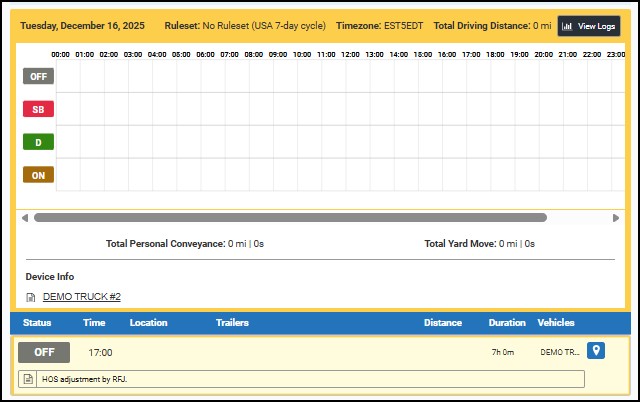
The driver must accept the added log in their app before it is truly added to their logs. The entire driver log displays a gold yellow border to let you know driver acceptance is still needed.
The added log appears below it in a light yellow (canary) color while it is pending acceptance by the driver.
Edit a Driver Log [fleet retail retailadmin administrator gtportal]
If a log needs to be edited, for example, to change the time the driver went off duty, follow these steps:
-
Complete the steps above to View Driver Logs [fleet retail retailadmin administrator gtportal].
-
On the HOS Logs screen, click the log you want to edit.
-
Make the changes in the Log Edit screen by selecting the desired change (Date, Status, Device, etc.).
-
Select Save at top of window.
-
Any log that has been added will show a pencil icon to identify that it has been added and not created or edited by the driver on the mobile or in-cab device.
-
Edited logs appear in yellow while it is pending acceptance by the driver.
-
The driver must accept the edited log in their app before it is truly added to their logs.
-


