Edit Driver HOS Logs in the Mobile App [retail driver fleet driver retailadmin administrator hos-app tfm]
As a driver, you can edit your own HOS logs in the Transflo Mobile+ app or the Transflo HOS app.
-
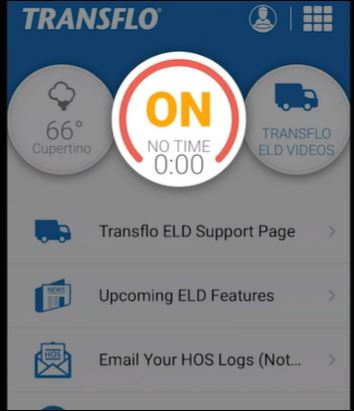
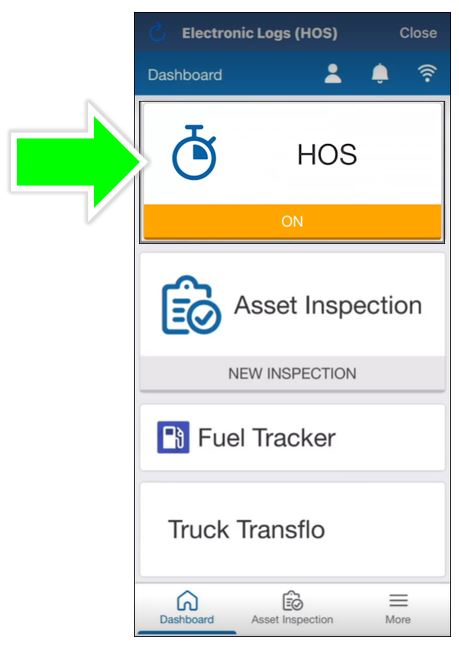
On the Home screen tap the HOS dial or tile. In this example, it shows ON.
- Tap
 Logs.
Logs.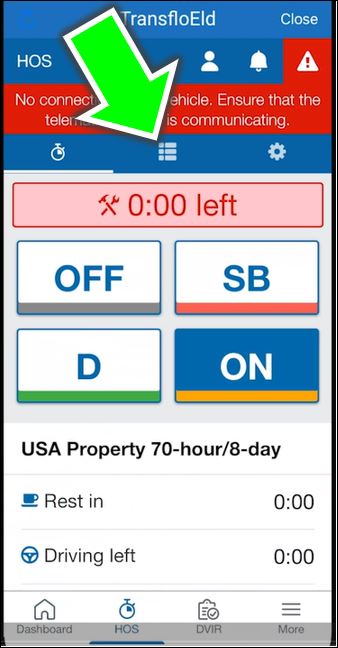
-
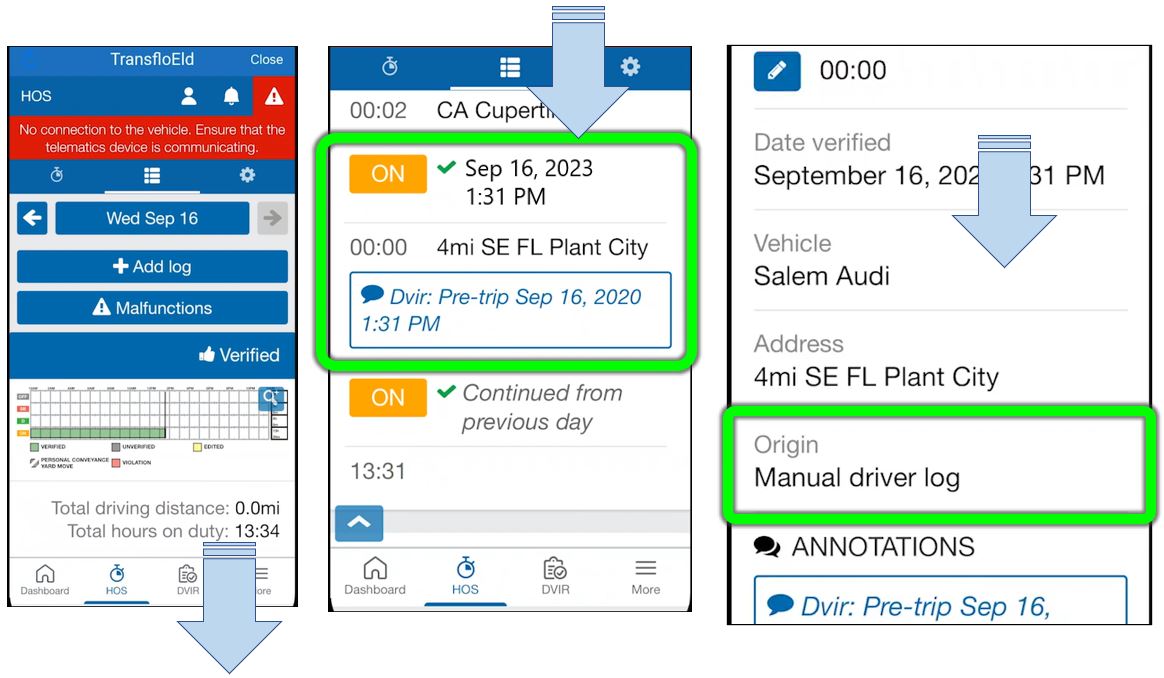
The Logs page shows a graph.
-
Swipe down to view the logs below the graph.
-
Find the logs you want to edit and select one or more logs.
-
Swipe down to identify whether the log is automatic or manual as shown in the Origin field.
-
-
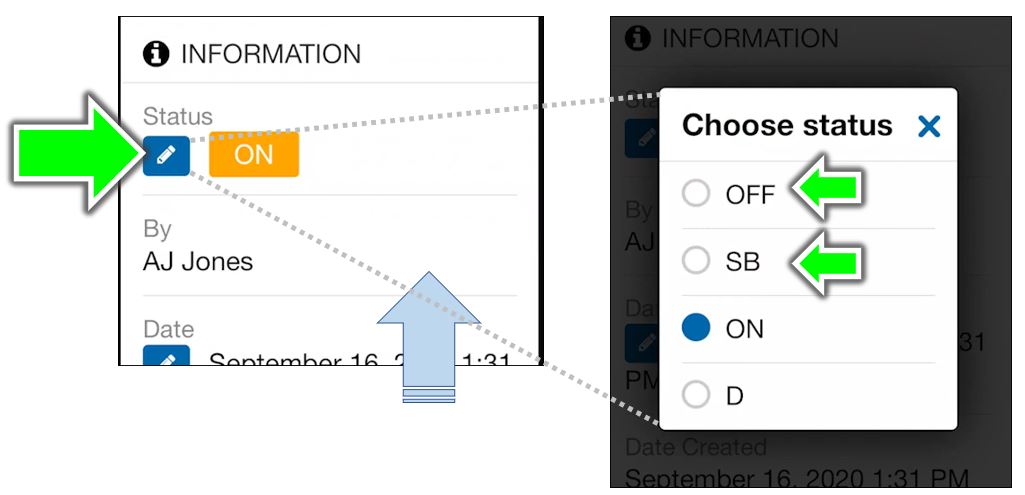
Swipe up to the Status field.
-
Tap
 Edit.
Edit. -
Under Choose status, change the HOS log status from ON to OFF , SB, or D.
-
-
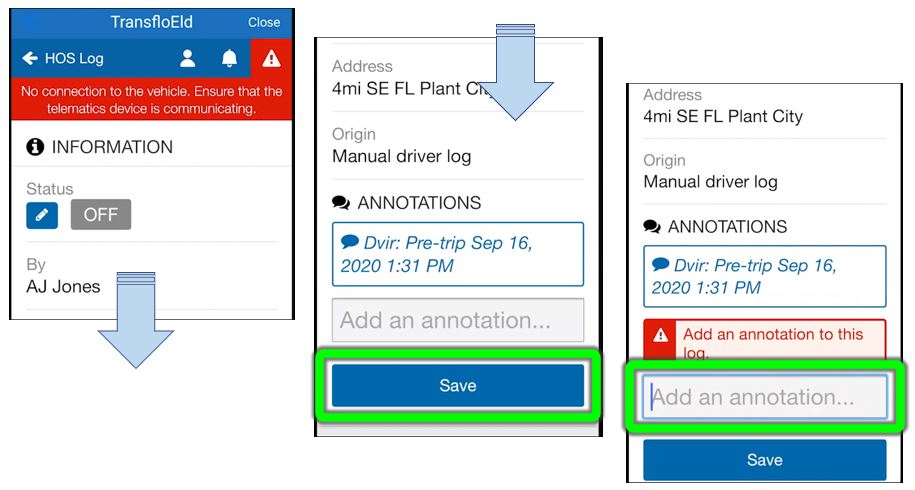
Swipe down to add a required note (annotation) to the log. Suggested annotations appear as you type. If you do not add an annotation, an error message appears to remind you to add one.
-
Tap Save.
Notes:
-
Automatic ON logs will never be fully removed when editing to OFF or SB, but will leave a 2 second ON log in place, and it will backfill the rest of the time with the selected status.
-
As a reminder, in automatic mode, drivers are Unable to edit an automatic ON duty status log. This is by design according to FMCSA regulations. To fix this, create a new log with the correct status.
 Tips [retail driver fleet driver hos-app tfm]
-
If you or your admin reassign logs, it may affect your driver availability. The original driver availability will be recalculated after the logs are reassigned.
-
HOS logs in question must already be verified. After any changes, you (the driver) must verify the logs for accuracy again. As a driver, you should review and accept any reassigned logs to ensure your driving records are accurate.
-
If you cannot reassign logs, contact your administrator, fleet manager, or Transflo Support for assistance.


