New! Transflo User Workflows SDK
This KB article describes the key functionality you can expect for your drivers and back-end operations staff when you implement the new re-imagined User Workflow (aka Loads 2.0) features in the Transflo Mobile+ app or the new Transflo User Workflows SDK.
 This KB article describes new features under development in the 2025-2026 pre-release BETA edition of Transflo Loads Workflow 2.0. All KB articles are subject to change with or without notice and will be updated to align with future product development.
-
As a transportation carrier or freight delivery organization, you can contract with Transflo to provide your fleet drivers with our industry-leading mobile app with new load workflows, document scanning, and dozens of other essential features. After a 90-day BETA period, your organization can opt in to be among the first to migrate to this new solution.
-
As an alternative, you can also integrate our expert driver load app into your own mobile platform. The Loads Workflow software development kit (SDK) for iOS and Android mobile apps provides your drivers and back-end systems with our leading load workflows including all load data, driver details, steps, actions, maps, document scanning, and more.
-
And for the ultimate experience in operations efficiency, your fleet administrator and operational teams can design your own load workflows and driver instructions step-by-step in the new Transflo Loads 2.0 Workflow Studio design environment. You can design and activate your workflows from a convenient visual dashboard or even configure data-driven workflows based on your TMS API and JSON configuration files.
Introducing the Transflo User Workflows SDK
The completely new Transflo User Workflows embedded mobile app solution is available as an optional software development kit (SDK) for your iOS and Android driver mobile apps. This Transflo KB article describes the key functionality you can expect for your drivers and back-end operations staff when you implement the new user workflow (aka Loads 2.0) features in the Transflo Mobile+ app or when you integrate a third-party app with the new Transflo User Workflow SDK.
2026 pre-release BETA edition. Features subject to change with or without advance notice.
 Commercial Motor Vehicle Freight Workflows
For more than 30 years, Transflo has served over 65,000 carrier fleets and over 3.2 million drivers with the supply-chain software solutions they need to deliver nearly $120 billion of freight annually. Before diving into the powerful Transflo Load Workflow Studio designer environment, mobile app, and SDK, it helps to start by observing a basic workflow. To illustrate, let's start with the following map:
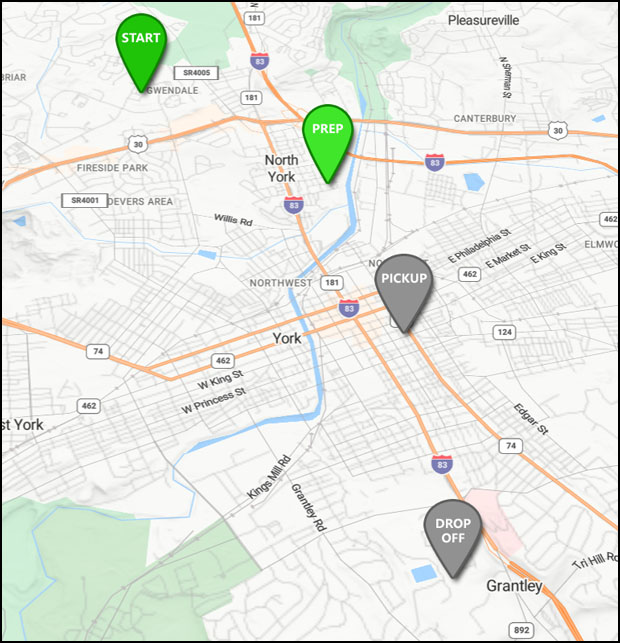
As a fleet owner or administrator, imagine you want the workflow for a load to go something like this:
-
Prep: You need a driver in Gwendale to do some prep work in North York before pickup and delivery of a load.
-
Pickup: You want the driver to pick up a load in York.
-
Dropoff: You want the driver to deliver the load to Grantley.
The main points or phases above are known as segments and typically correspond to the major stops required to deliver the load. Each segment can be broken down into steps with specific driver actions including scanning bar codes, setting weight or temperature values, viewing alerts, driving through invisible pre-defined geofences, or tapping form buttons in the mobile app.
The following map shows the actual Segments panel from the new Loads 2.0 Workflow Studio portal aligned with the key points on the map.
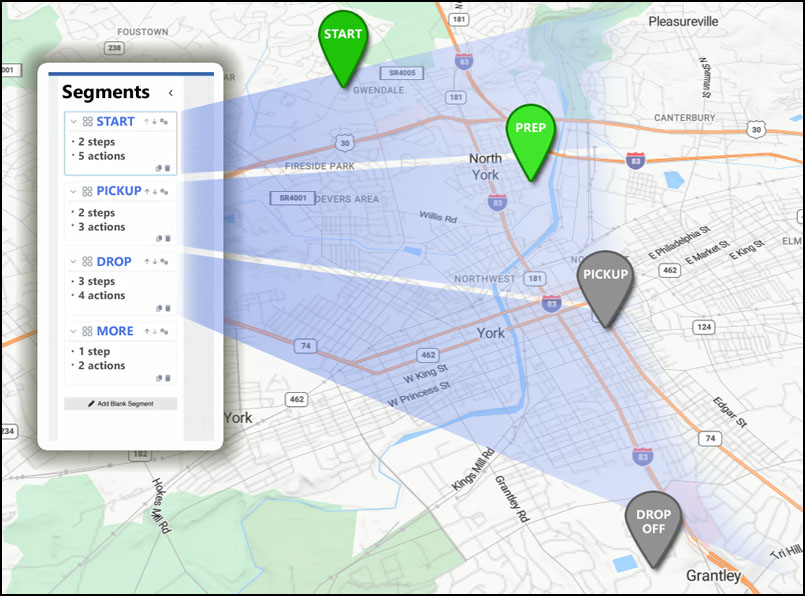
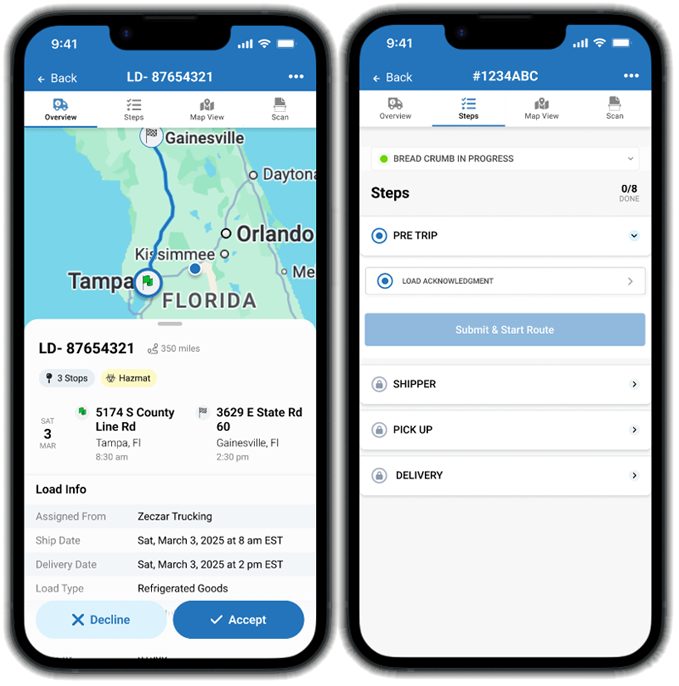
As a fleet manager, you or your Transflo admin can design custom segments, steps, and actions. Your fleet drivers will see their required steps and actions inside the embedded Transflo SDK on their mobile phones or tablets:
Driver Load List and Load Information
Load List
Integrated inside your choice of driver app on smartphones or tablets, the Transflo Loads 2.0 SDK shows a standard list of loads. Often called a driver load board, the Loads list includes the following load status values customized for each driver:
-
Available (also known as tendered load offers)
-
Accepted
-
Declined
-
In-Transit
-
Completed
In some configurations, instead of available offers, accepted loads, and declined loads, dispatchers automatically assign each driver their next load. In these fleets, the loads list would show Assigned, In-Transit, and Completed loads.
Load Search
To help drivers find a load, they can tap the Search button. Drivers can search by load number, BOL number, location, or dates (date of pickup or delivery).
Load Sort
If drivers want to change the default sort order for loads from new at the top to older loads at the bottom, they can adjust the sort order. Drivers can sort their loads by any of the following data properties:
-
Shipping Date/Time
-
Delivery Date/Time
-
Load Number
-
BOL Number
-
Estimated distance
-
Number of stops
Drivers can also clear the current sort order and refresh the list of loads back to the default order.
Get Load Information
For each load, drivers are provided with all of the following essential load data:
-
Load ID
-
Estimates Miles
-
Start Date
-
Start Location
-
Start time
-
Delivery date
-
Delivery location
-
Delivery Date
-
Tags
-
Workflow Details
-
Quick Scan option
When a driver has accepted (or has been assigned to) a load, they can tap it in their Loads list to open it. At this point, they can now view the following more detailed load-specific features:
-
Overview
-
Steps
-
Maps
-
Messages
-
Scan
This KB article describes new features under development in the 2025-2026 pre-release BETA edition of Transflo Loads Workflow 2.0. All KB articles are subject to change with or without notice and will be updated to align with future product development.Load Overview Tab
After you implement the Transflo Loads Workflow SDK in your mobile solution, your drivers will see the familiar Load Overview screen including a helpful map with pins at the stop locations along the route. Below the map, they can navigate a resizable area that includes all of the following essential load data:
-
Load Number
-
Estimates Miles
-
Start Date, Time, and Location
-
Delivery Date, Time, and Location
-
Tags
-
Any Other Load Details
If configured, for customers who do not want to force load assignments, you can show the driver Accept or Decline buttons side-by-side and capture their response.
Example: In the following two example screens from the Transflo Loads Workflow SDK, a driver has reviewed a load offer on the Overview screen, tapped Accept, and then started to complete the required tasks on the Steps screen.
This KB article describes new features under development in the 2025-2026 pre-release BETA edition of Transflo Loads Workflow 2.0. All KB articles are subject to change with or without notice and will be updated to align with future product development.Driver Messages
Your drivers can send and receive chat messages about a specific load. Unlike your ordinary text messaging app on your mobile phone, you don't have to guess what load the messages are about. Each chain of messages you send and receive is inside the current load open on your mobile device screen.
The Messaging feature behavior depends on which app your fleet is using to integrate with the SDK:
-
Transflo Mobile+: The SDK can show a Messaging tab or use the Mobile+ app messaging feature.
-
Geotab Drive app or HOS app: The SDK can show a Messaging tab.
-
Another Third-Party Driver app: Your fleet can choose from three (3) options:
-
Show the Messaging tab and use the native Transflo messaging in your non-Transflo app.
-
Show the Messaging tab and link to the chat messaging feature in your non-Transflo app.
-
Hide the Messaging tab (your fleet can use its own chat feature independently or opt to skip using a chat feature)
-
This KB article describes new features under development in the 2025-2026 pre-release BETA edition of Transflo Loads Workflow 2.0. All KB articles are subject to change with or without notice and will be updated to align with future product development.
Easy Snap-Tap-and-Done Document Scanning
The SDK includes the popular Transflo Document Scanning feature, if enabled. Drivers can click the Scan button to get all the enhanced features in the newest Transflo document scanning engine. Your fleet gets the same load document scanning features to point-tap-capture or upload documents.
Tips for fleet administrators: Scan divisions can be found via the GET config MWS api call, part of the Transflo Mobile Views API integration.


