New! Transflo Mobile+ LTL Driver Workflows on Handsets
Use this KB article if you are a driver, fleet supervisor, dispatcher, freight delivery assistant, maintenance technician, or support professional using or helping others use the new LTL route workflows running on Honeywell handsets configured with a special edition of Transflo Mobile+ (Release 6.7, 7.0, etc.). This special edition of the Mobile+ app was initially released in November 2025 and continues to be updated in 2026 for select fleets using the new Transflo User Workflow features for LTL routes. It runs exclusively on Honeywell handsets and is embedded inside these unique Android devices for select fleets only.

Tip: Most drivers do not have this edition and this KB article does not apply to the majority of drivers.
This special edition of the app has unique features that vary from the popular core app or in-cab editions of the app. For example, it runs only in dark mode and does not include Transflo document scanning features. As a freight delivery driver or package delivery associate working on your assigned routes and schedules, you can refer to this KB article to review generic examples that demonstrate possible ways to use the new user workflows for drivers (also known as Loads 2.0) that run inside a special limited edition of the Transflo Mobile+ app for select fleet-issued Honeywell handsets.
This special edition is similar to the in-cab edition of the Mobile+ app. Instead of running on Android tablets, it runs exclusively on certain pre-configured Android handsets. Both editions run on driver devices that typically remain in the cab.
 Do I Have this Transflo Product? Will this KB Article Help Me?
Most drivers do not have this edition and this KB article does not apply to the majority of drivers.
As a driver, to know if this special edition of the Mobile+ app applies to you:
-
Contact your supervisor.
-
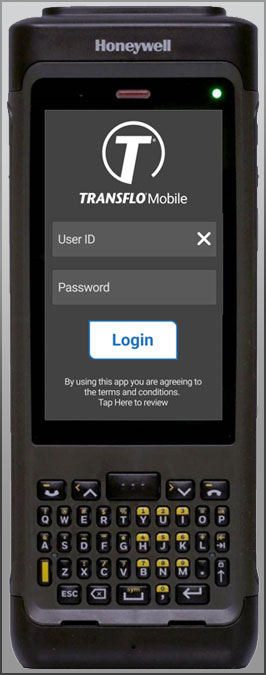
Verify you have a Honeywell handset and can log in to Transflo Mobile+ (already pre-installed for you by your fleet) with your Geotab user ID and password. Use the same user ID and password in Mobile+ so that when you log in to Geotab at any time, you are logged in automatically.
-
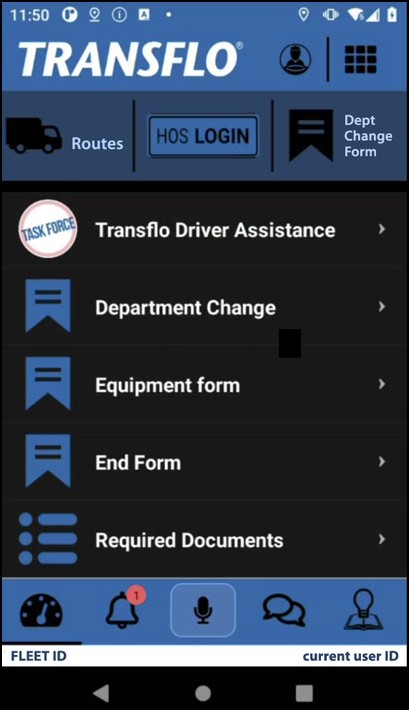
After you log in, you should also be able to confirm the following: your fleet ID is preset for you at the bottom left, all or most of your Mobile+ screens appear in dark mode, and a Routes button (not a Loads button) appears at top left.
Log in and Out of Transflo Mobile+ for LTL Routes on Handsets
This section demonstrates typical ways to log in and log out of Transflo Mobile+ when it is running Release 6.7, 7.0, or newer on a handset device.
Key points to remember:
-
You log in to both Transflo and Geotab with your Geotab username and password.
-
Do not enter a full e-mail address; only your Geotab username.
-
You cannot change your fleet ID. It is set for you.

Important! Authentication is handled by Geotab. If you forget your username or password, you can reset it through your fleet admin or Geotab. Do not contact Transflo Support. They cannot reset your username or password since Transflo Mobile+ and Geotab are both using your Geotab credentials managed by your fleet.
Log in
-
Power ON your company-issued Honeywell handset. It is preset to start a special edition of the Transflo Mobile+ app for your fleet (you cannot change the fleet ID).
-
Enter your User ID and Password and then tap Login.
-
You are now logged in to Transflo Mobile+ and the Dashboard or Home page appears.
To reset your forgotten password, go through Geotab. Contact your supervisor if you need help.
Tip: Your user ID is your Geotab user ID and is used to authenticate you in both Transflo Mobile+ and your Geotab HOS/ELD account. Use the exact same user ID when you log in to Transflo Mobile+ and when you log in to Geotab. Later, when you tap HOS Login, an easy single-sign on (SSO) process automatically authorizes you and logs you in based on the email User ID you already entered when you logged in to Transflo Mobile+.
Log Out
-
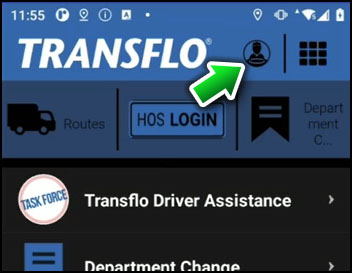
Tap User Settings or the My Profile driver button at top right.
-
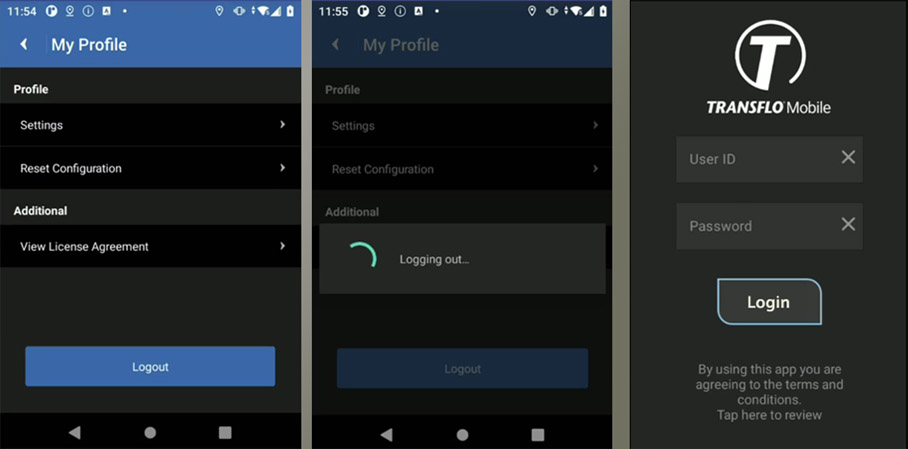
On the My Profile screen, tap Logout.
-
You are logged out of Transflo Mobile+ but might still be logged into Geotab HOS. At the end of your work day or work week, you might need to log out of Geotab HOS first.
-
After you log out, this special edition of the app displays the Login screen for you again so that you or the next driver can log in on the handset ().
-
Check with your supervisor to confirm, but in general, you can leave the handset in the truck for the next driver.
Tip: Whenever you log out of Geotab, you are also logged out of the Transflo Mobile+ app.
-
Log in, Set HOS Status, and Log Out of Geotab
Log in to Geotab HOS features in the Mobile+ app to set your HOS status. We recommend that you remain logged in until the end of your work day so that any workflow steps that go to Geotab can occur automatically.
Key points to remember:
-
You log in to Transflo and Geotab with your Geotab username and password.
-
Do not enter a full e-mail address; only your Geotab username.
-
Authentication is handled by Geotab. If you forget your username or password, you can reset it through your fleet admin or Geotab. Do not contact Transflo Support. They cannot reset your username or password since Transflo Mobile+ and Geotab are both using your Geotab credentials managed by your fleet.
Log in to Geotab HOS
-
Power ON your company-issued Honeywell handset. It is preset to start a special edition of the Transflo Mobile+ app for your fleet (you cannot change the fleet ID).
-
Enter your User ID and Password and then tap Login.
-
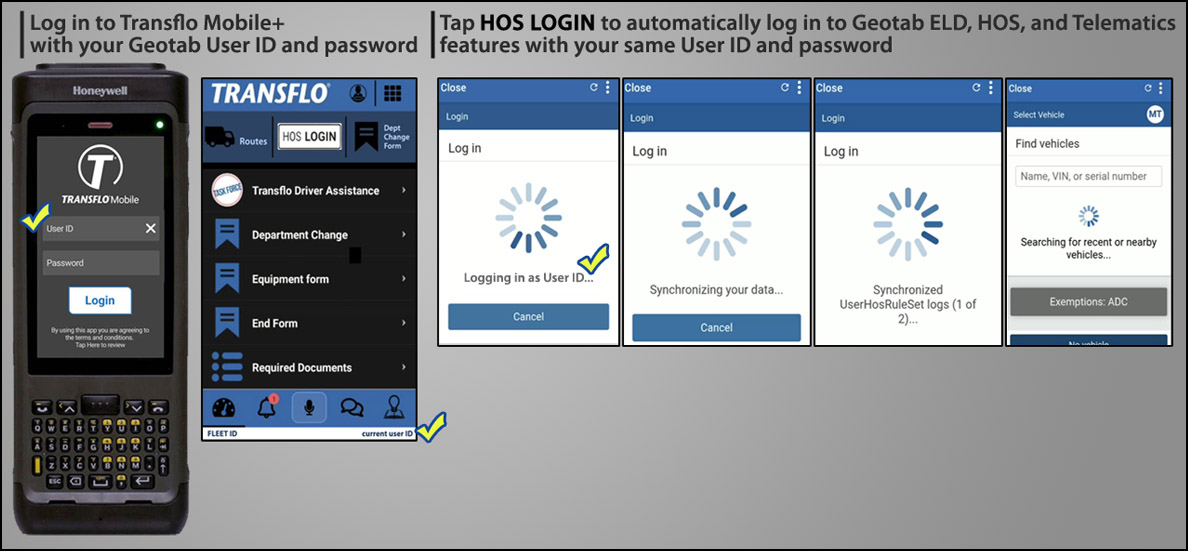
On the Transflo Mobile+ Dashboard or Home screen, tap HOS LOGIN.
-
Several status messages appear. The main items to look for include:
-
The user ID you entered appears at the bottom right and again when you launch Geotab (Logging in as User ID...).
-
The Geotab Login screen shows Synchronizing your data and Synchronized UserHosRuleSet logs (1 of 2).
-
The Geotab Select Vehicle screen shows Searching for recent or nearby vehicles so you can select one or tap No Vehicle.
-
-
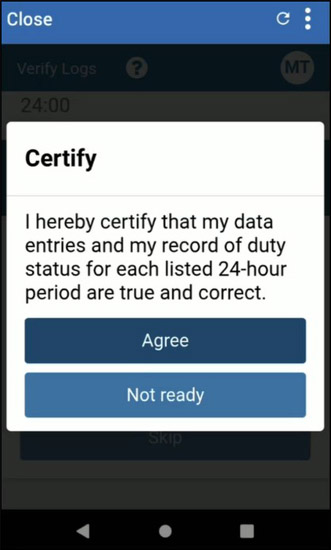
On the Certify screen, tap Agree or Not ready.
-
On the Verify Logs screen, select Verify all days or Skip.
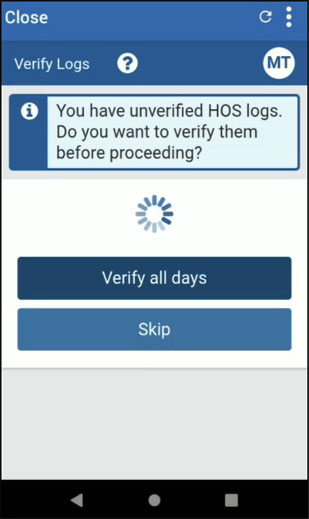
Tip: To learn more, see Verify Logs.
Set Your HOS Status
-
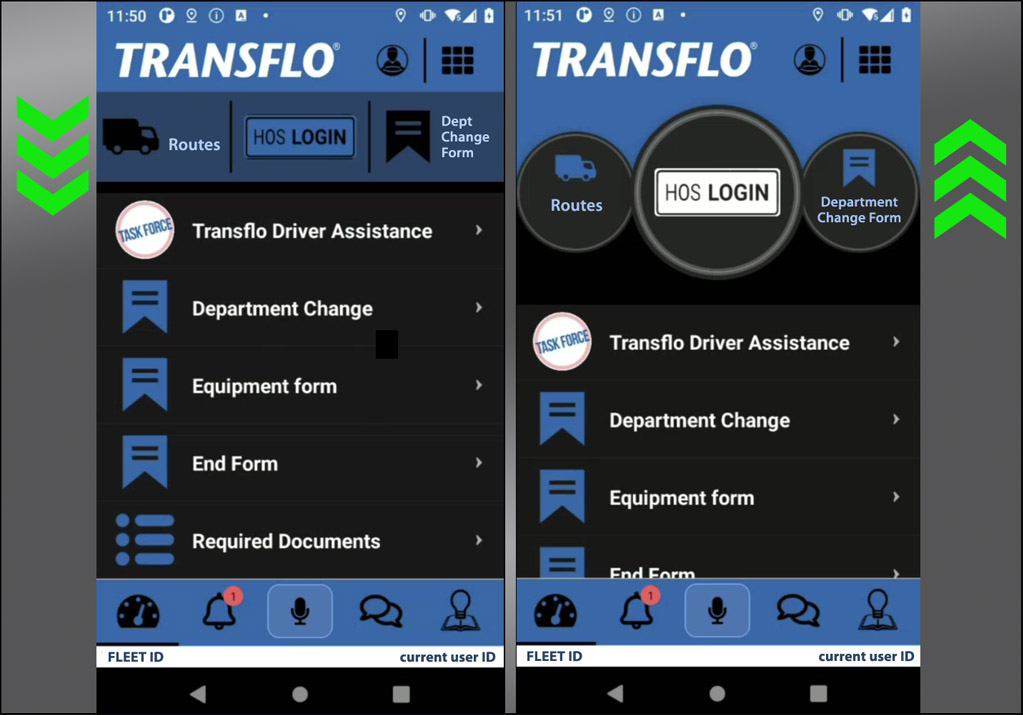
Tap HOS LOGIN. You can swipe to toggle HOS LOGIN as a button or circular dial.
-
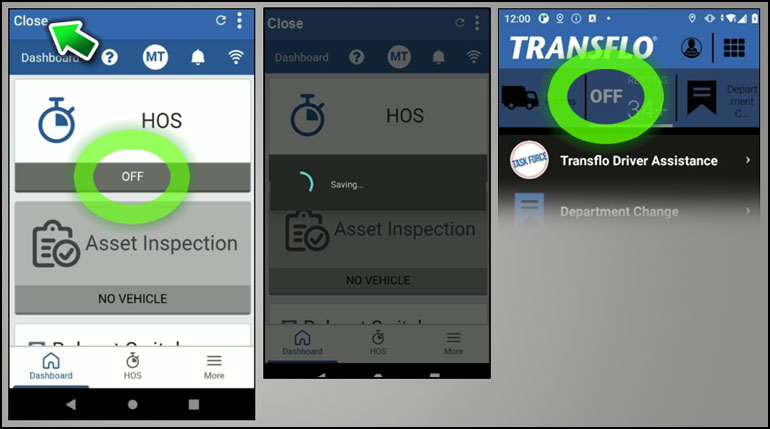
Set your HOS status. For example, PC or OFF.
-
Tap Close to return to Transflo Mobile+ which shows your current HOS status at the top.
Log Out of Geotab HOS
-
To close out of HOS, verify your HOS duty status shows PC or OFF.
-
Tap Close.
-
This manages your duty status logs for you. If you want to log out manually, tap your user name in Geotab at the top right and then choose Log Out.
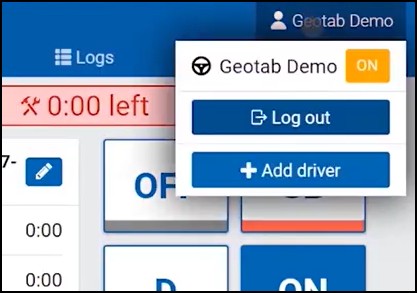
Tip: Whenever you log out of Geotab, you are also logged out of the Transflo Mobile+ app.
User Interface Basics for the Handset Edition of Mobile+
Use Transflo Mobile+ Only When Safe (Not While Driving)
-
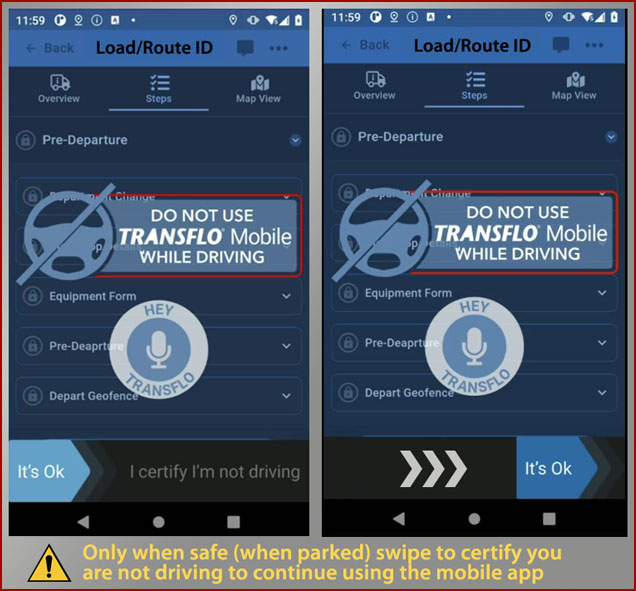
Do not use the app when driving.
-
On select devices, with the right permission settings in Android OS, you might be able to voice commands using the hands-free Hey Transflo features. The app can also respond out loud over your audio speakers.
-
When safe, slide or swipe the It's OK slider to the right to certify you are not driving.
Dark Mode is Preset For You
This edition of the app on handsets runs in fixed permanent dark mode to save battery consumption and reduce eyestrain. You cannot adjust the dark mode appearance. Note that external forms, Geotab screens, and other related features might not appear in dark mode.
Smaller Row of Options Instead of Larger Dial-Style Gauges
If you prefer, you can swipe up or down to toggle the row of three (3) options into larger dial gauges.
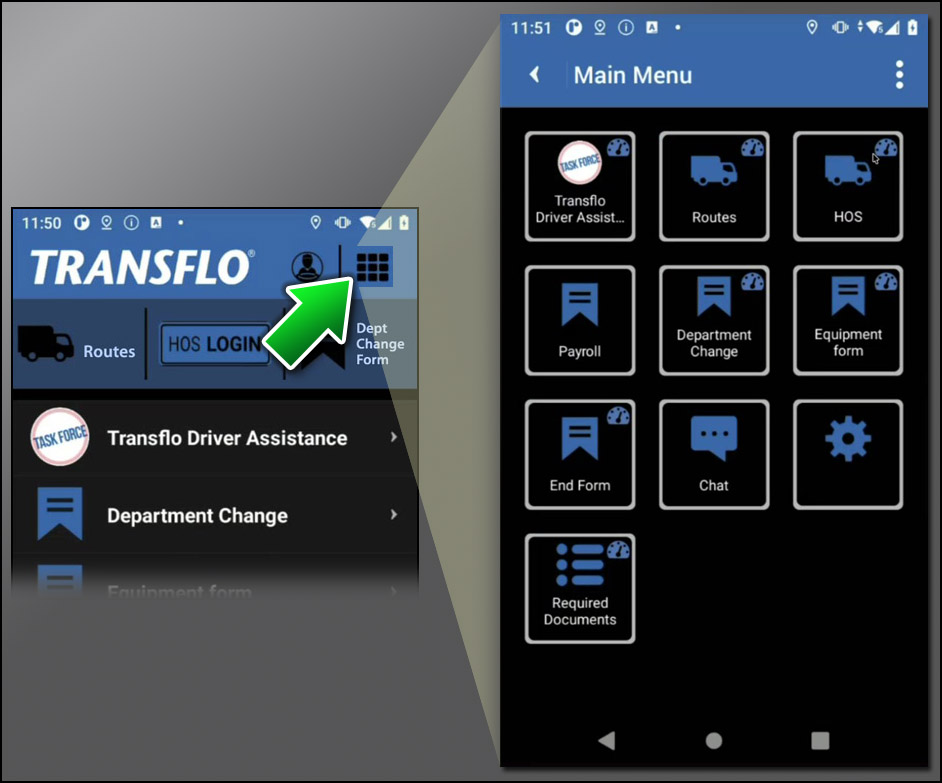
Main Menu
The most popular options appear on your dashboard when you log in. If you need to view a full menu, tap Main Menu.
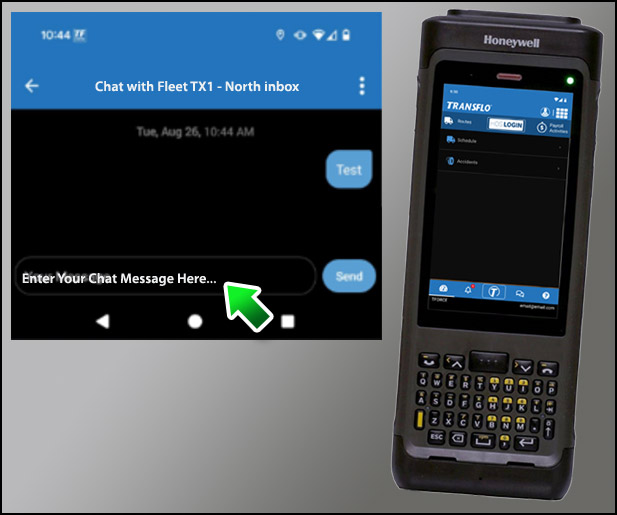
Hardware Keys
This edition runs on handsets equipped with physical hardware keys you can press to enter information on forms or chat messages. You won't have an on-screen keypad like traditional Android phones or tablets.
View Stop Details for the Current Stop
-
Log in and start a load or less-than-load (LTL) route.
-
Expand the segments or legs in your workflow to view each step.
-
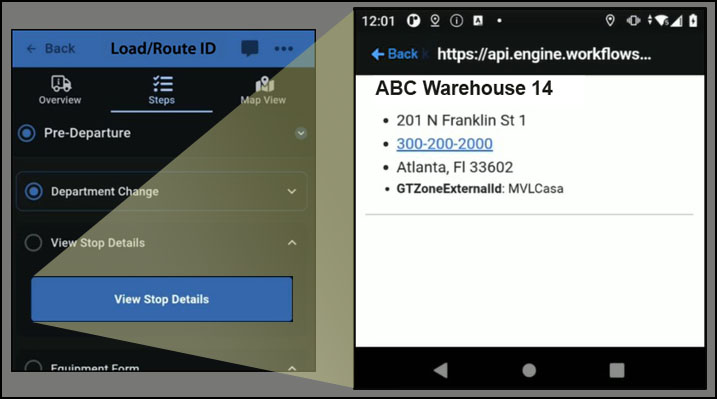
If a step has a View Stop Details button and it is blue, tap it to view current stop details including the site or location name, address, and phone number.
Tip: If the View Stop Details button is grayed out, it might mean you did not yet start the load or you might not have made progress through the workflow yet to get to that stop. The feature shows only the current stop.
-
To go back to complete other steps, tap Back.