Overview
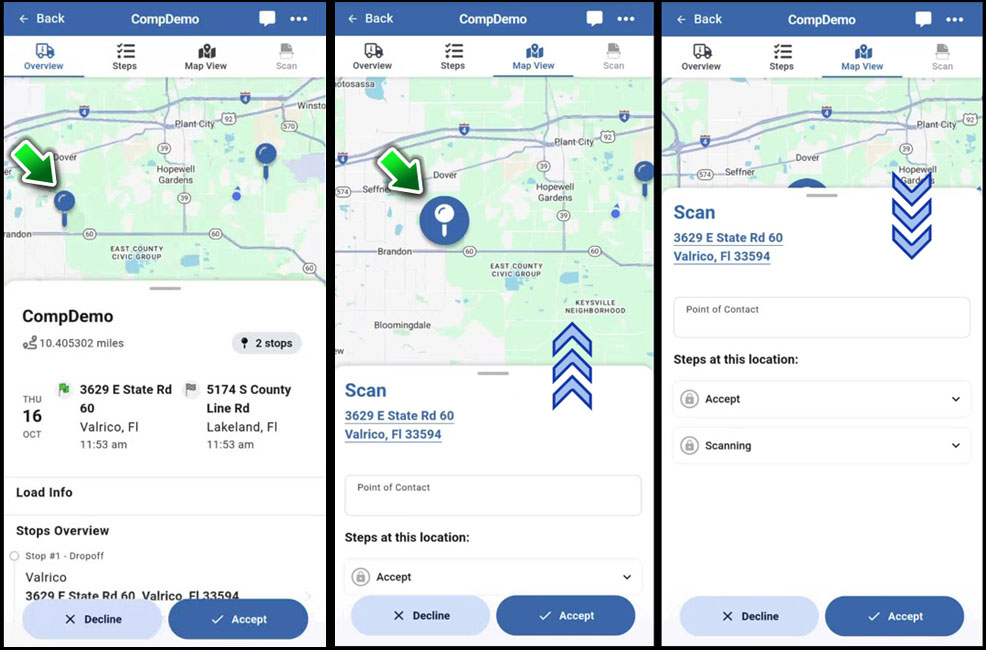
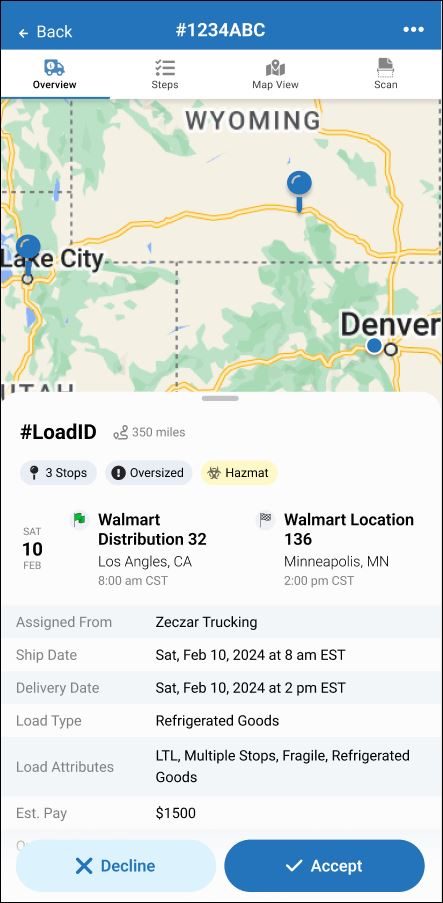
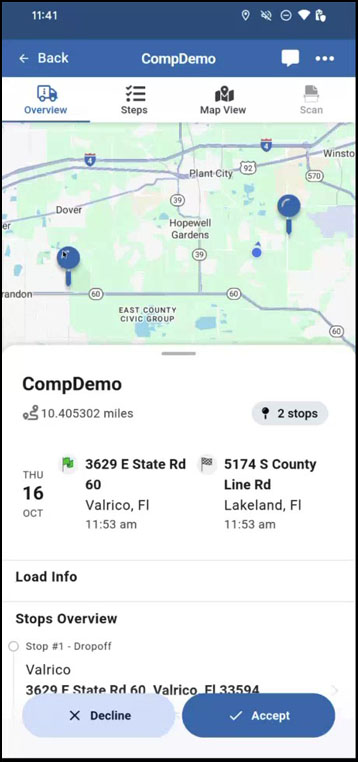
The load Overview screen appears when you open a load. As a starting point, this screen gives you essential load details with tabs at the top to go to other screens:
-
Messages (only for implementations that need a messaging feature; this tab is hidden for most mobile apps such as Transflo Mobile+ or Geotab Drive because those apps already have a messaging feature.)
Examples:
 This KB article describes new features under development in the 2025-2026 pre-release BETA edition of Transflo Loads Workflow 2.0. All KB articles are subject to change with or without notice and will be updated to align with future product development.
Use the Overview screen to get the following load details:
-
Load ID
-
Estimated total distance in miles or kilometers for the load
-
Map with pins at the pickup, delivery, and any middle stop locations
-
Start Date, Time, and Location including Address, City, and State
-
Delivery Date, Time, and Location including Address, City, and State
-
Tags (for example, Hazmat, Refrigerated, or Oversize)
-
Load Type, Attributes, and Estimated Pay (payment to the driver for hauling the load)
-
Other load details as configured by your broker, carrier, or shipper
For Available new loads, two buttons typically appear. Review your work schedule and contact your supervisor if necessary before tapping your choice:
-
Accept: Tap this button to confirm you are equipped and ready to haul this load. The authorized fleet carrier, broker, or shipper will see your name as the assigned driver.
-
Decline: Tap this button to let the broker, carrier, or shipper know that you cannot take this load. Until you tap the decline button, you might continue to receive offers for this load until it no longer appears in your list of available loads.
Tap on a Stop to Go to Map View