Messages
As a driver, you can send and receive chat messages about a specific load. Unlike your ordinary text messaging app on your mobile phone, you don't have to guess what load the messages are about. Each chain of messages you send and receive is inside the current load open on your mobile device screen.
Tip: This feature might not appear in the Transflo Mobile+ app if you already have chat messages and alert notifications. If you are using the Loads Workflow 2.0 SDK in another third-party app, the Messages tab might appear (if turned ON by your admin) or might not (if turned OFF by your admin because you already have another chat feature enabled).
 This KB article describes new features under development in the 2025-2026 pre-release BETA edition of Transflo Loads Workflow 2.0. All KB articles are subject to change with or without notice and will be updated to align with future product development.
-
Launch Transflo Mobile+ or any app with the integrated Transflo Loads feature (available as an SDK API).
-
Tap Loads.
-
In the Loads list, tap a load.
-
Tap Messages at the top.
-
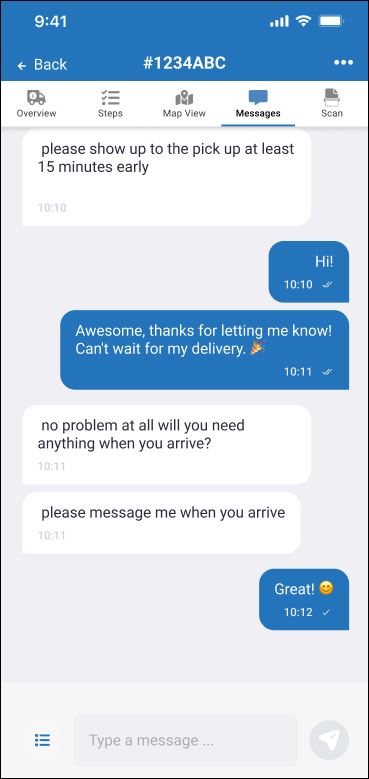
The history of all messages sent and received appears. Swipe up or down to scroll through the messages to refresh your memory of any important details. If no messages were sent or received, the history is blank.
-
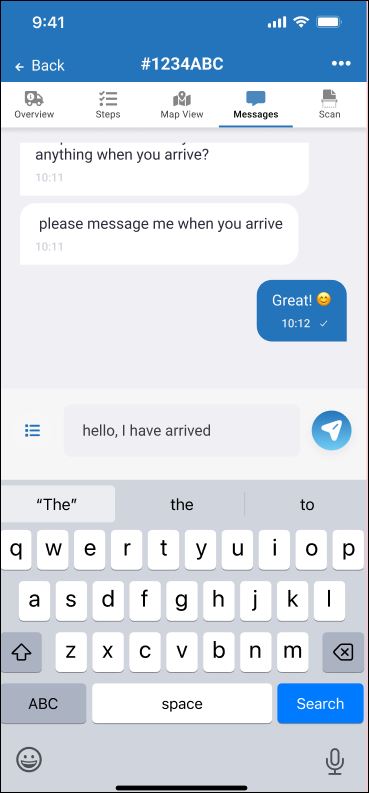
To start a response or draft a new message, tap the Type a Message... text prompt inside the small box where you can write and edit your message.
-
When ready, tap Send.

Tip: If your fleet is using the Transflo Loads features in another app instead of the Transflo Mobile+ app (such as the Transflo HOS app or Geotab Drive app), your administrator might configure the Messages button to open your standard messaging interface. If they turned messaging off, the Messages button is hidden.


