Log in to Hours of Service (HOS) Features [retail driver retail administrator hos-app tfm]
Before you drive, log in to the HOS functionality available in your Transflo HOS or Mobile+ app, verify your logs, claim unassigned logs, set your availability, add a co-driver or assets, manage your HOS, perform asset inspections, and learn how to log out or when to stay logged in.
-
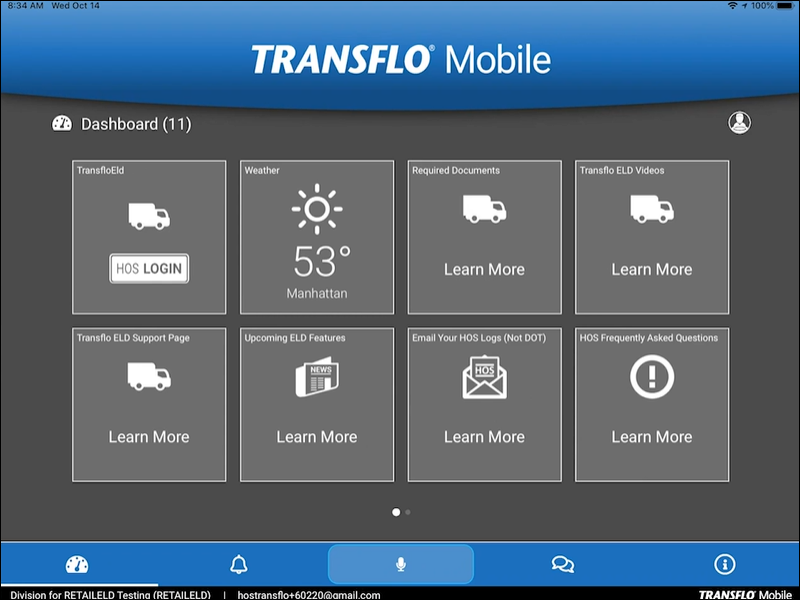
On the Home screen in the Mobile+ app, tap HOS LOGIN. Enter your HOS account Email and Password and then tap LOGIN.
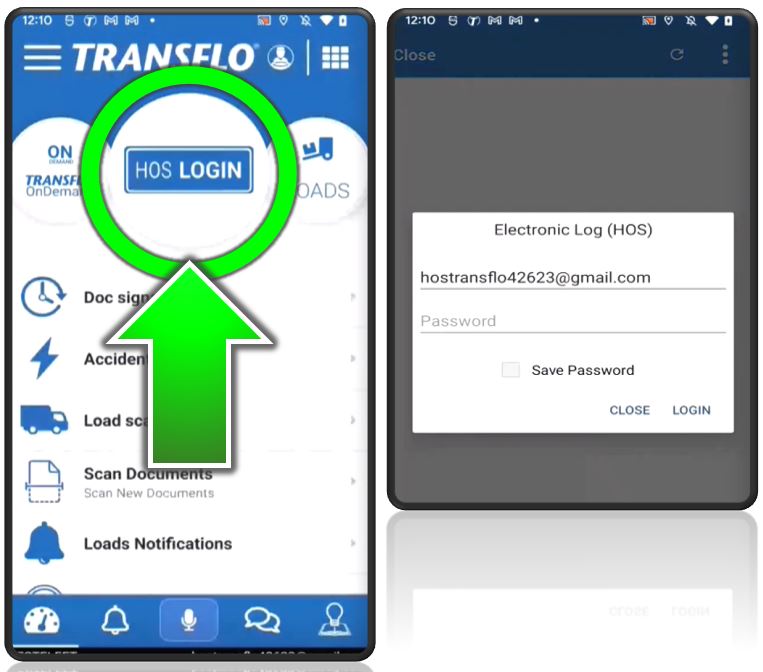
A separate Electronic Log (HOS) Login screen might appear or you might see a smaller screen that appears inside the Transflo Mobile+ app. This menu item and exact steps may vary depending on your app, type of device (a tablet example appears below), and fleet configuration.
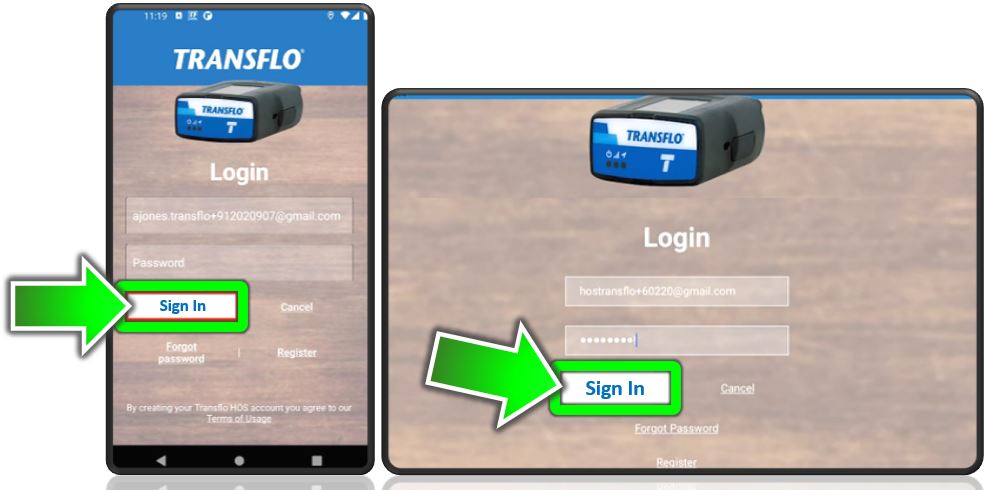
If using the HOS app, enter your HOS Account Email and Password and then tap Sign in.
-
(Optional) If you forget your details, contact your fleet administrator for assistance. (As a shortcut for small retail customers, as long as you have the same email address now as you did when you registered, you can reset your own password. See Reset My Password.)
-
The next screen asks you to select your vehicle. If you get the message that no nearby vehicles are detected you can enter the name of the vehicle, VIN number, or G9 ELD device ID number into the bar at the top.
-
The next screen asks if you want to attach a trailer. You may attach an existing trailer, create one in the system (if configured), or continue with no trailer.
-
The next screen asks if you wish to attach a shipment. You may attach and create a shipment log in the system or you can continue without attaching a shipment.

Tip: Trailers and shipments are not required to be attached on your e-logs. The decision to track trailers through Transflo is up to your company. Your admin can allow or not allow you to create a trailer.
-
The next screen asks you if you want to do a pre-trip inspection.
-
If you are ready, you can start an inspection which puts you in ON duty status and starts your clocks.
-
If you are not ready to do your pre-trip now, tap Skip.
-
-
Additional windows and prompts might appear. Follow the on-screen instructions or skip them to proceed.
-
You can always complete the tasks later on other screens.
-
Unassigned Driving logs will only be shown during login and logout.
-
We recommend that you do not skip the steps to verify your logs or claim unassigned logs during login to ensure that your HOS status and availability are accurate.
-
-
You are successfully logged into your HOS account and are ready to drive.
The Transflo Mobile+ and HOS apps provide access to these and other HOS features; however, the user interface labels, steps, and functionality are determined by Geotab and subject to change. To learn more about these features, see the Driver’s Guide to Hours of Service.

|
Reminder: Transflo is the premier provider of popular commercial apps, custom white label apps, in-cab tablet editions, embedded handset editions, and thousands of additional fleet-specific integrated features. Due to all the possible product configuration changes for your specific fleet, it is possible that user interface labels, buttons, links, dials, tiles, icons, colors, logos, and placement on the screen can vary. Features can also be hidden from your view based on customer account, fleet ID, or user permissions. In the documentation, we cover a default setup with screen examples that are generally similar for smart phones and tablets running either iOS or Android OS. Adjust certain steps, if needed, to reflect your actual device, product configuration, and company policies.
|


