Roadside Checks [retail driver retailadmin administrator hos-app tfm]
If you are invited to a roadside inspection check by law enforcement, you might be asked to provide up to eight (8) days of HOS log data depending on your inspection Change My HOS Rule Set retail driver retailadmin hos-app
See also Driver’s Guide to Data Transfer at Roadside Checks and English Language Proficiency (ELP) Qualifications for Drivers [driver.retail driver.fleet admin.retail admin.fleet app.hos app.mobileplus].
 Provide HOS Inspection Info [retail driver retailadmin administrator hos-app tfm]
-
Choose one:
-
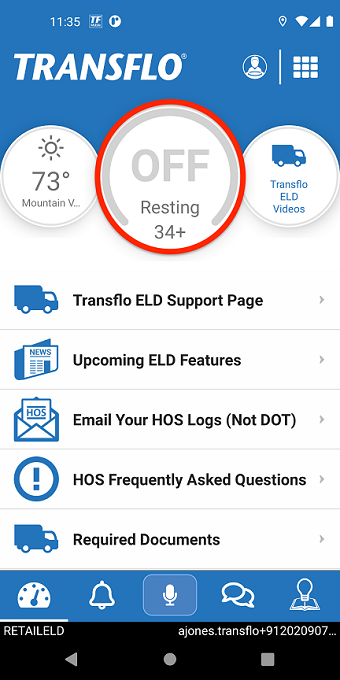
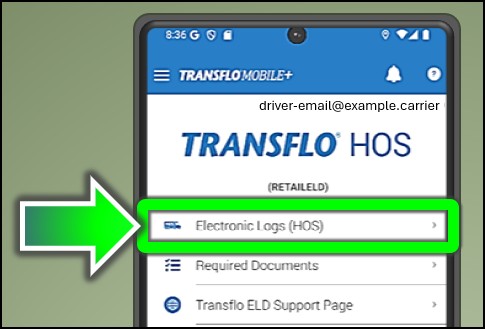
Tap Asset Inspection.
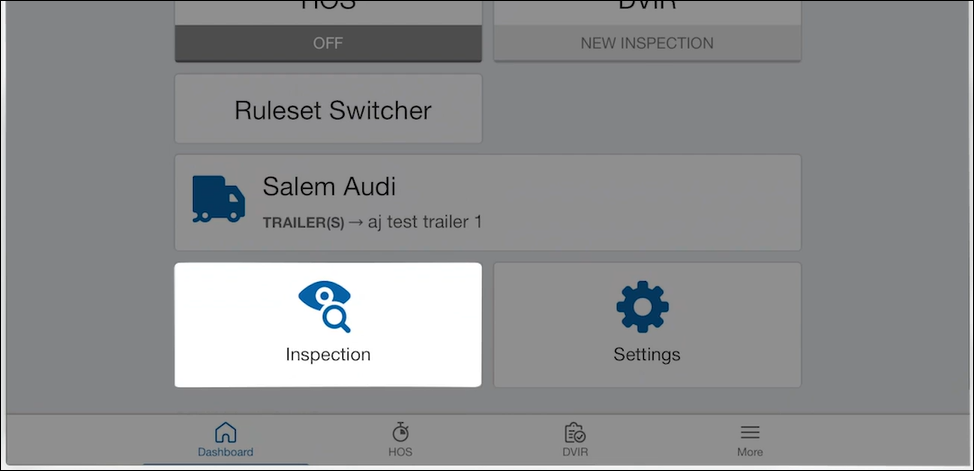
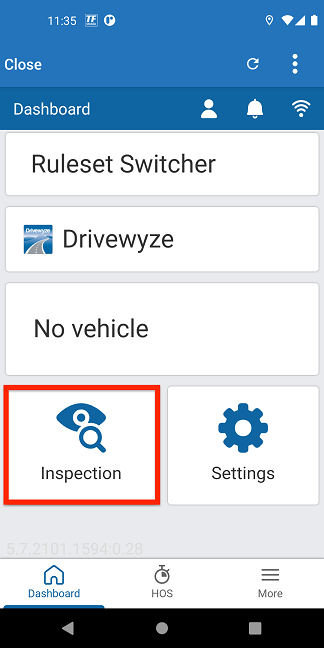
-
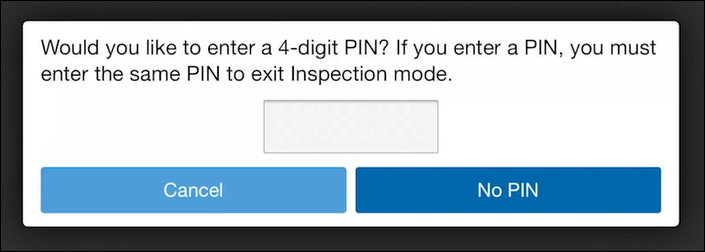
You are asked to set a one-time 4-digit personal identification number (PIN) code for security. Only you can enter and exit inspection mode with your memorized PIN code.
-
Enter a PIN and press Continue.
-
Enter the PIN again when prompted and tap Confirm PIN.
-
(Optional) To skip the security pin option, tap No PIN.
-
If the app is closed during the inspection, opening it returns you to inspection mode where you have to re-enter the one-time PIN to exit.
-
If the vehicle is driven while in inspection mode, the PIN is cleared and the lock screen activates. A PIN is no longer required to exit inspection mode.
-
-
At this step, you either entered a pin or skipped the pin. In either case, the app is now in inspection mode.
-
Review the provided information necessary for the completion of a roadside inspection.
-
Logs can be transferred to the FMCSA or are shown on screen.
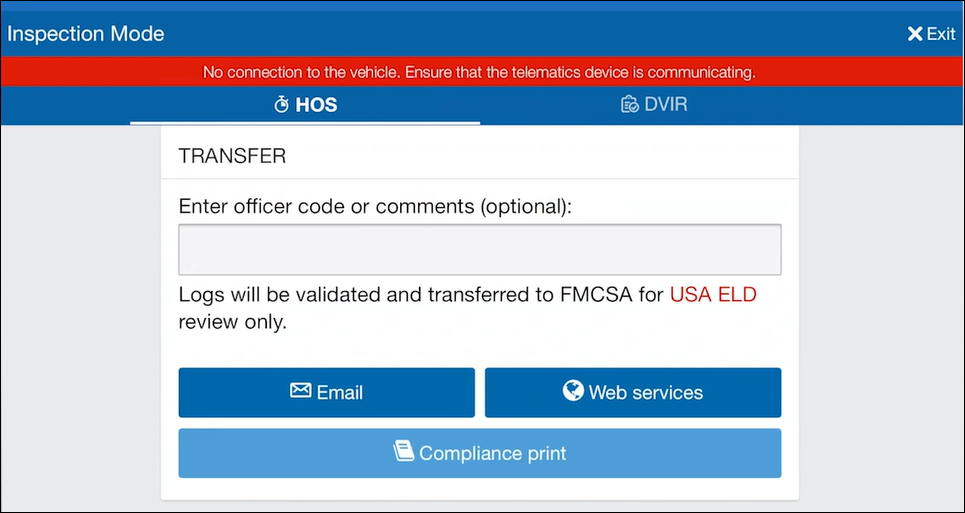
- You can also review the most recent DVIR.

-
After the inspection is over, tap X Exit in the top right corner to exit inspection mode.
-
If you set a 4-digit PIN, the app prompts you to enter it.
-
If your fleet admin did not enable the PIN feature, the screen prompts the current user (police or transportation inspection agent) to hand the device back to the driver before exiting inspection mode. As the driver, tap Continue.

-


Notes:
-
If the app is closed during the inspection, opening it returns you to inspection mode where you must re-enter the one-time PIN to exit.
-
If the vehicle is driven while in inspection mode, the PIN is cleared and the lock screen activates. A PIN is no longer required to exit inspection mode.

Tip: If you cannot remember your PIN, you can log out or begin driving to exit inspection mode.
Transfer HOS Logs to the FMCSA [retail driver retailadmin administrator hos-app tfm]
-
To transfer HOS logs to the FMCSA as a raw data file for their eRODS safety compliance review, enter the code provided by the inspecting officer in the Comments field.
-
Select Email or Web Services to transfer the report.
Tip: We recommend using the Web Services option as the fastest method of transfer. You can also use Compliance Print as an option if both Email and Web Service transfer options fail. If Email and Web Services both fail, you can show the logs on screen but might still get a citation because it is currently considered not compliant to show on screen only.
To learn more, see Transfer ELD Duty Status Logs to FMCSA [fleet retail driver retailadmin administrator gtportal tfm hos-app].
E-mail and Web Services Data Transfer Methods [retail driver retailadmin administrator hos-app tfm]
Transflo supports the electronic data transfer of telematics data by web services or email over a data or wireless connection. Make sure you have network connectivity through your wireless phone provider data plan or access to a wireless (Wi-Fi) network or mobile hotspot.
Become familiar with the steps for enabling Wi-Fi or network access on your iOS or Android device so you are ready for a future roadside inspection check.
Display HOS Logs on Screen [retail driver retailadmin administrator hos-app tfm]
You may also be asked to display a Compliance Print on your mobile device during a roadside check.
-
On the HOS dashboard, scroll down and select Asset Inspection.
-
Select Compliance Print to display the Compliance Report on your mobile device.
-
Use the arrow buttons to display up to eight (8) days of logs for US rulesets, and up to fifteen (15) days of logs (for Canadian rulesets). You can also press the date to select the desired date from a list.
-
To learn more, see Transfer and Present ELD HOS Logs in Geotab Drive and MyGeotab. The same options are available in Transflo Mobile+ app, the Transflo HOS app, and the Transflo Telematics portal.
Tip: When a driver enters Roadside Check mode, but is not assigned to a vehicle, the Drive App uses information from the previously assigned vehicle to populate the odometer, engine hours, and other vehicle-related data.
Tip: If you have your Drive App language settings set to a non-English language, a button allows you to toggle the Compliance report into English.
Review the Asset Inspection Report (formerly DVIR) [retail driver retailadmin administrator hos-app tfm]
A formal Driver Vehicle Inspection Report (DVIR) now known as an Asset Inspection confirms that a driver has completed a pre-trip or post-trip inspection of their commercial motor vehicle, cab, trailer, brakes, tarps, tires, and detailed any mechanical defects. Inspections play an essential role in improving road safety while ensuring fleet compliance.
-
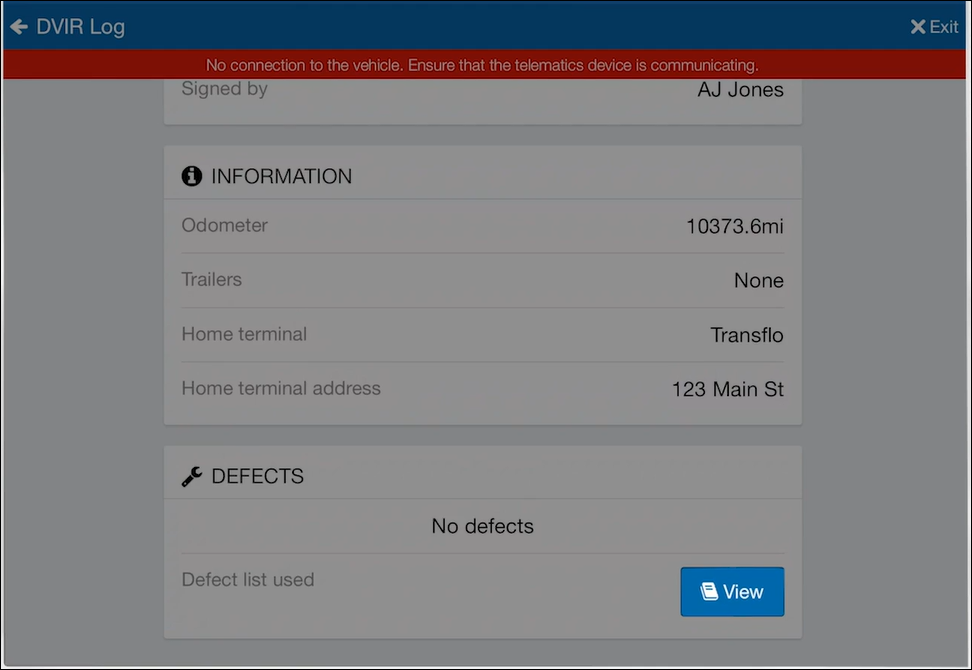
Select the Asset Inspection tab at the top of the screen and tap View.
-
Scroll down and select View to see the last inspection.
-
Close or exit.
 View a demonstration of these steps in one or more Transflo videos:
Tablet
Smartphone


