Change My HOS Rule Set retail driver retailadmin hos-app
After selecting an original ruleset during the registration process, you can change your hours-of-service ruleset as needed. This only applies to retail accounts using the HOS app. Typically, the only times you would change your ruleset would be to switch between the regular ruleset with and without the split sleeper option or between USA and Canada rules.
The Transflo HOS app helps you track your own interpretations and policies designed by you and your company to meet your compliance with federal hours of service (HOS) regulations. Transflo cannot guarantee your compliance. Although you can edit the HOS rule sets, you do so at your own risk; be careful you are still in compliance with FMCSA regulations.
For example, by default, Transflo HOS enforces the following rules:
-
60/70-Hour Weekly Limit: You cannot drive after 60 hours on duty in 7 consecutive days or after 70 hours on duty in 8 consecutive days. You can start a new 7 or 8 consecutive day period only after going off duty at least 34 consecutive hours.
-
14-Hour Shift Limit: After going off duty for 10 consecutive hours, you cannot drive more than 14 consecutive hours. In other words, in a 24-hour day, the most you can drive is 14 consecutive hours reduced to 13.5 hours because a 30-minute non-driving period is also required every 8 hours. Off-duty time does not extend the 14-hour maximum limit.
-
On your mobile device, open a web browser app such as Chrome or Safari, and navigate to the following secure site:
-
Log in to the HOS registration site.
-
Your screen might vary; choose one of the following:
-
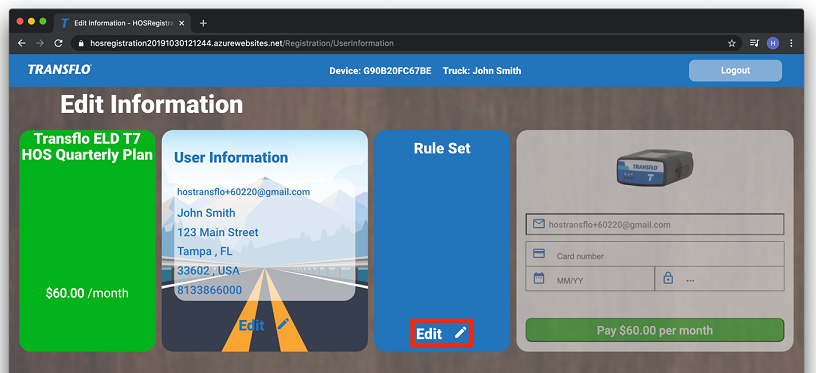
On the Home page or Edit Information screen, click Edit in the Rule Set section.
-
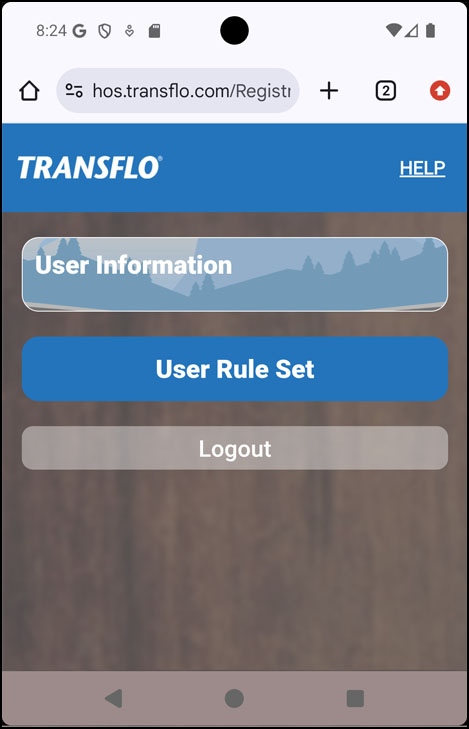
Tap User Rule Set.
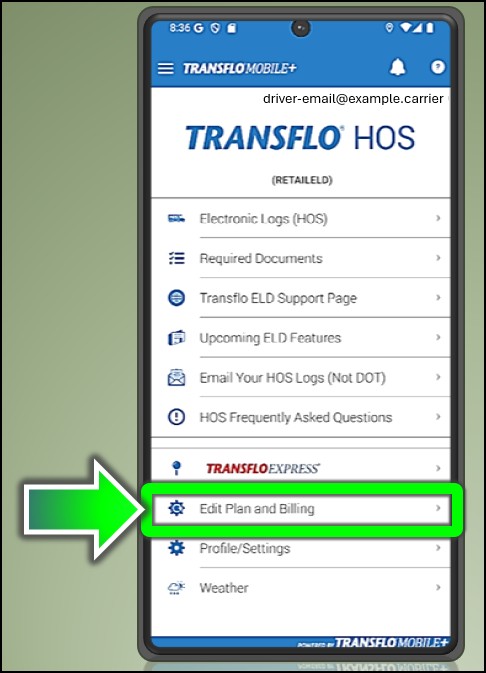
Tip: As an independent driver or owner-operator with a retail ELD account, you can also perform these initial steps in the HOS app.
- Tap Edit Plan and Billing.
-
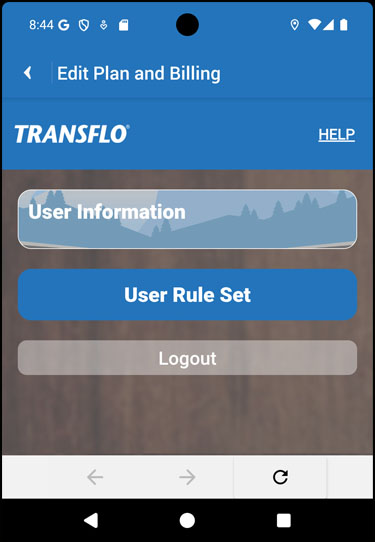
On the Edit Plan and Billing screen, tap User Rule Set.
-
-
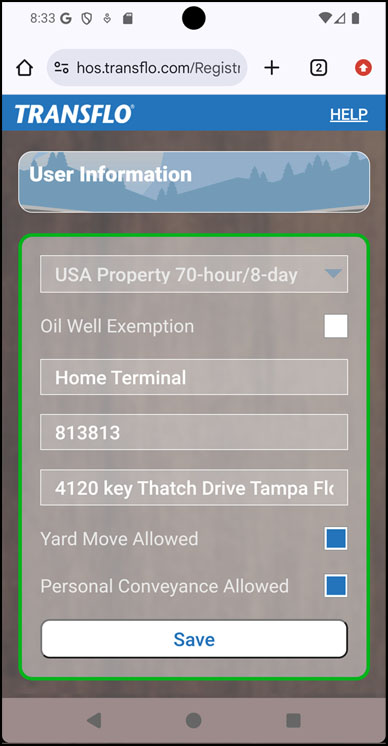
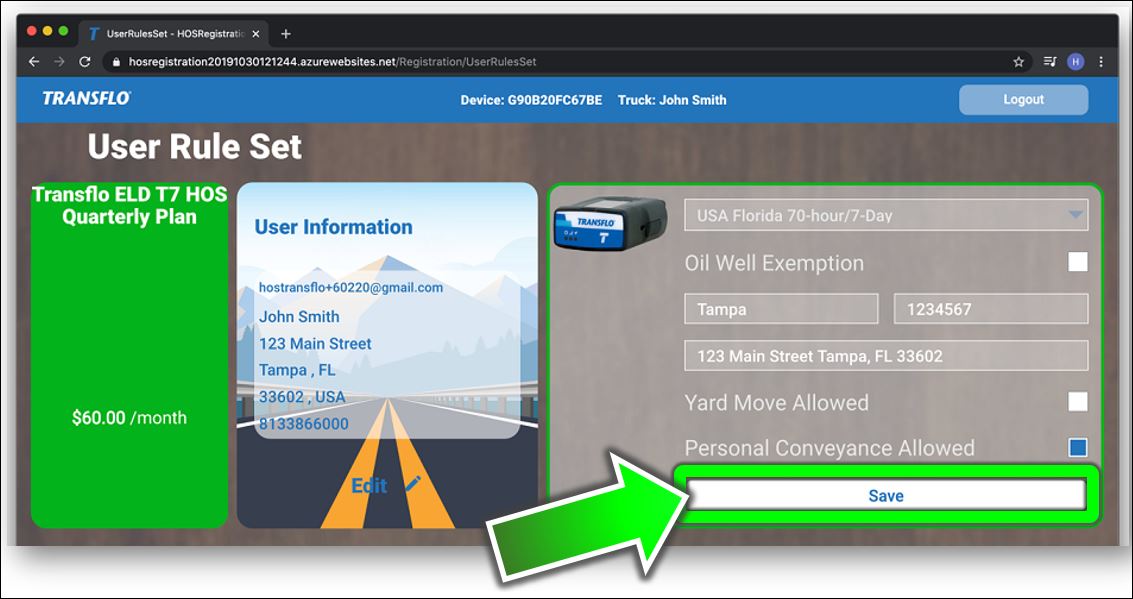
On the User Rule Set page, in the drop-down list for the first field, select a rule set.
Default: The standard rule set is USA Property 70 hour/8 day.
-
(Optional) Select one or more of the following check boxes:
-
Oil Well Exemption,
-
Yard Move Allowed,
-
Personal Conveyance Allowed

Note: Once an exemption is allowed, you cannot remove it. If you turn these on, it will always be there. It cannot be edited or removed. This is per FMCSA regulations. It cannot be changed by driver or administrator. It is locked in per FMCSA regulations.
-
-
Complete the following fields:
-
Home Terminal
-
Carrier Number
-
Address
-
-
Click Save.
-
Your new rule appears in the Rule Set section on the main page of the HOS Registration site.
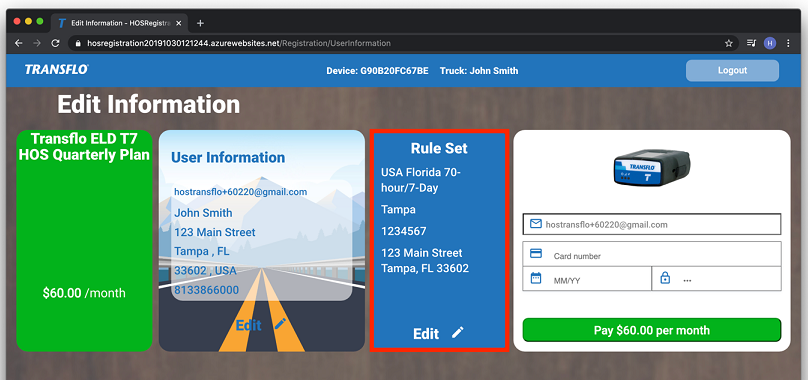

Important! Credit cards cannot be added or processed until you select or edit at least one valid rule set.
 View a demonstration of these steps in one or more Transflo videos:


