Android and iOS Location Settings
You might get Android or iOS messages about location settings when you start the Transflo Mobile+ app. These are not Transflo messages; technically, they are coming from your phone or tablet which is only trying to help you out. More and more apps including the Transflo Mobile+ app are using mobile device location settings. We recommend that you enable location tracking settings during your work week. It is up to you and your company policies if you want to keep them enabled or turn them off on your own personal off-duty time.
For example, the popular Find My Device app evolved into the Find Hub feature in Android (Apple iOS devices can use the Find My app), making the process of locating belongings, phones, tablets, luggage, bags, pets, children, family, and friends easier. In a similar way, the Transflo app can track your location for loads, road map navigation, and other features. It is possible for carriers to request that drivers provide location status as a standard policy to maximize operational efficiency.
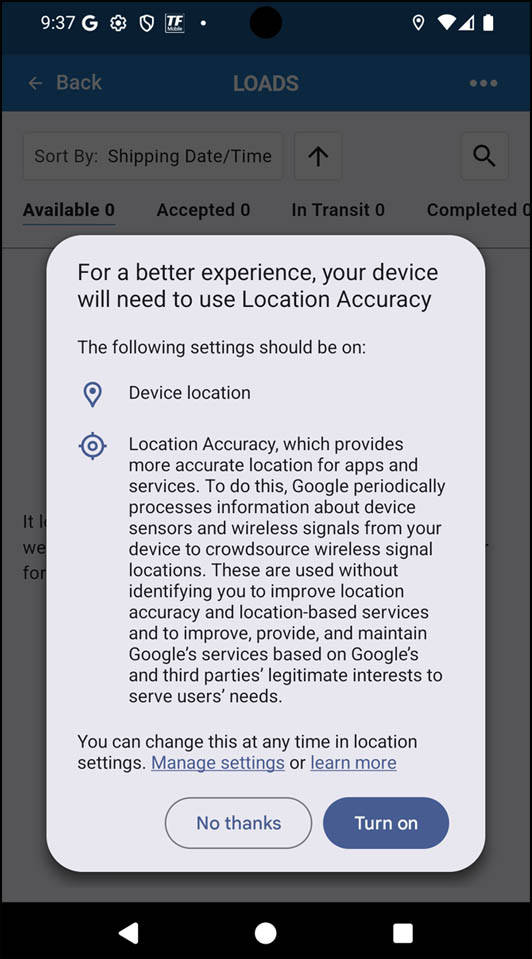
The following message might appear on your Android device (iOS has similar messages):
For a better experience, your device will need to use Location Accuracy. The following settings should be on:
-
Device Location: This is the basic generic location setting for your device. It is either ON or OFF. Transflo needs this ON in order to send you loads by location and to track delivery.
-
Location Accuracy: This setting provides more accurate location information for apps and services. Google Android OS processes data from sensors and wireless signals on your device to crowdsource wireless signal locations. This data is used without identifying you to improve location accuracy and location-based services.
If you get this message, tap an option:
-
Turn On: Recommended.
-
No thanks: Keeps the location settings OFF. Don't be surprised if your device keeps prompting you to turn it ON.
To adjust at any time:
-
Tap Settings.
-
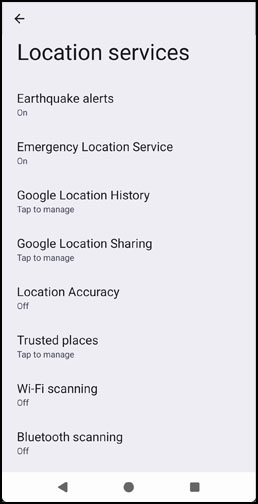
Open Location Settings.
-
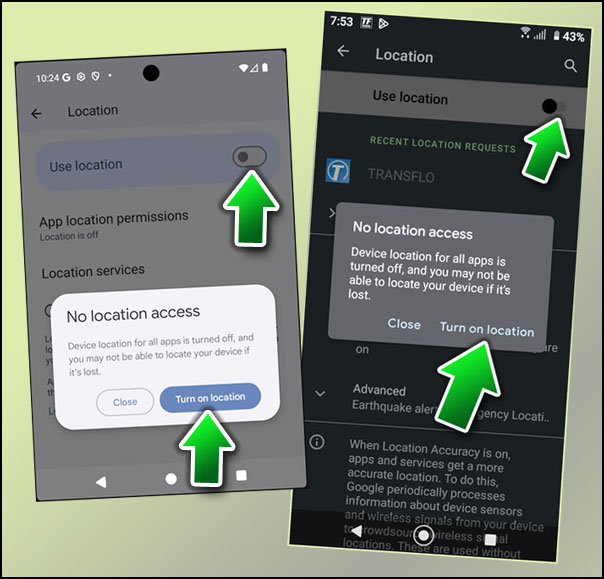
If No location access appears, tap Turn on location.
-
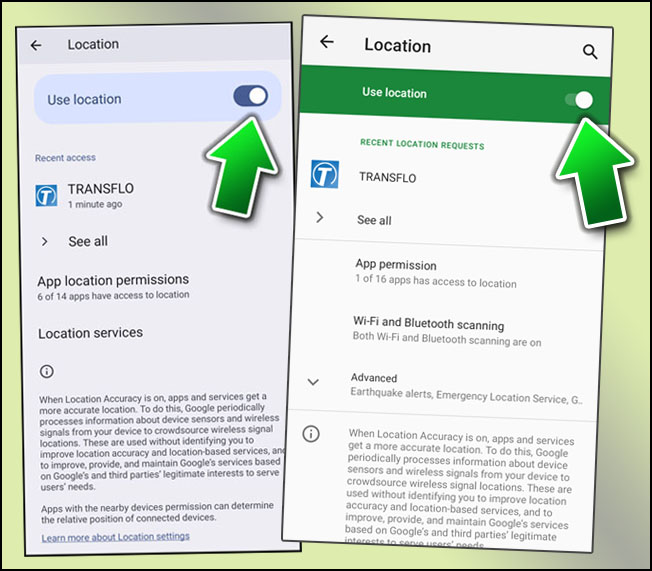
Set Use location to ON.
To learn more, see Allow Location Access and the online documentation for your device and mobile operating system:
-
Android Location Settings: https://support.google.com/accounts/answer/6179507
-
Apple iOS Location Settings: https://support.apple.com/guide/personal-safety/manage-location-services-settings-ips9bf20ad2f


