Update Synergize to Reflect SQL Database Migration
Use this article to update the Synergize EMC after moving the Synergize databases to a new machine.
-
Copy the repositories databases and deployment database to the new SQL server.
-
In the Synergize EMC deactivate and then unregister each repository.
-
Unregister the deployment under Deployment Profiles. Note the following server name for the Deployment URL to re-register the deployment later:
http://<server-name>/SynergizeWebAdmin/DeploymentMgmt.asmx
-
If the client is using Synergize 13 or later from Local Deployment select Change Deployment Database
-
Enter the new server name, SQL account and password.
-
Select the deployment database.
-
Click the Add button to administer the changes.
Note: If done using Synergize 12.3 SP6 or lower use the COM+ Admin Application to make changes listed above.
-
-
Using the Deployment Profile node, register the deployment using the documented Deployment URL.
-
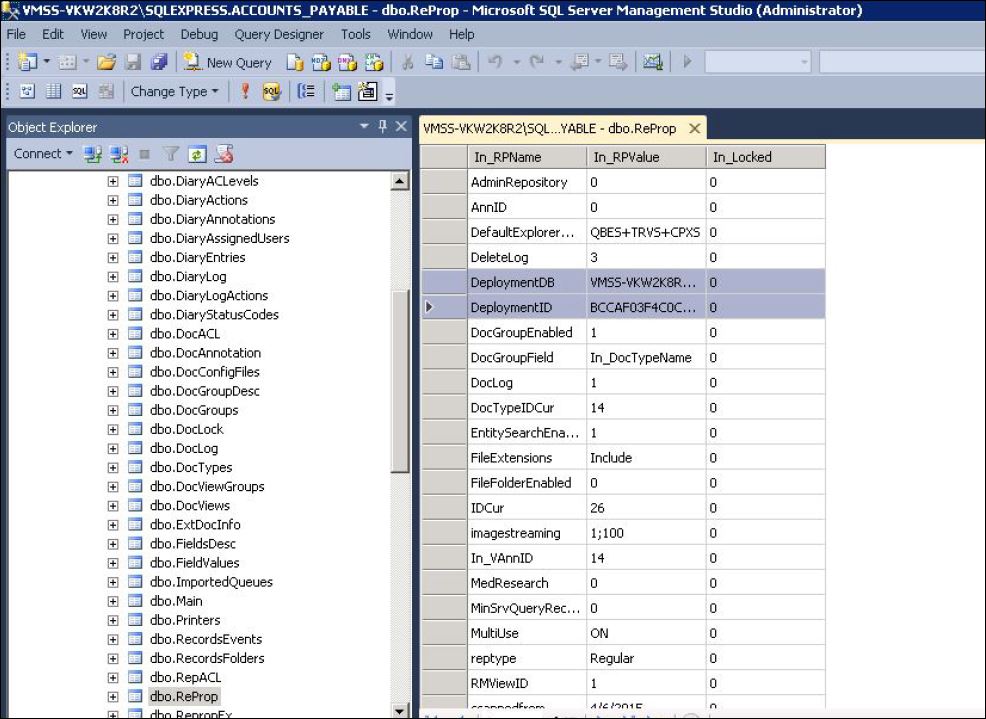
Get a session to the new SQL server for the client and under the repository database navigate to the ReProp table and delete the two deployment entries. Do this for each repository.
-
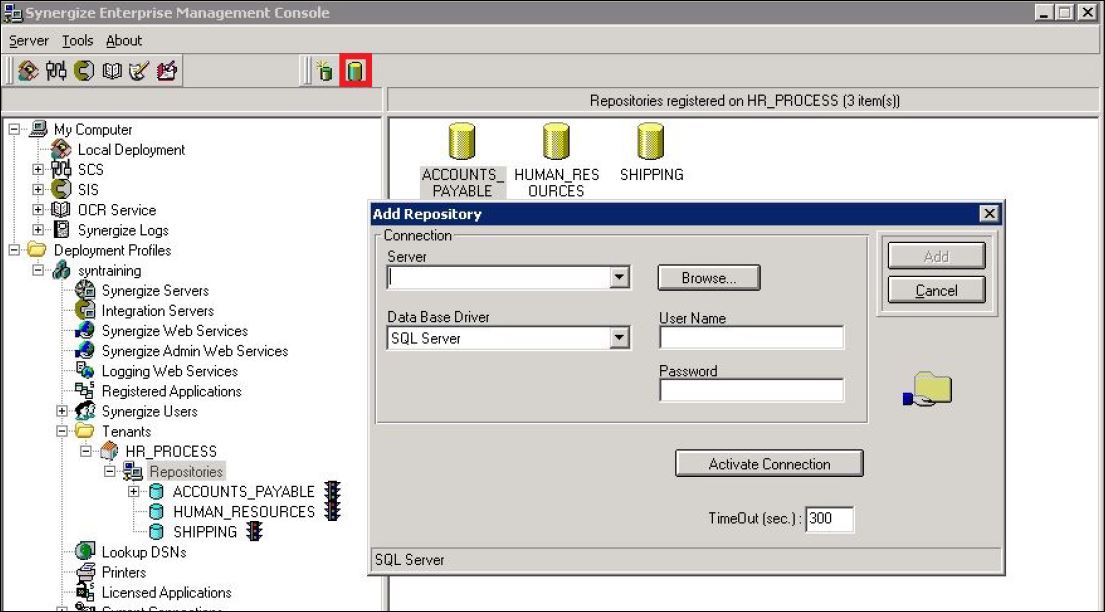
Navigate to the Repositories node, select the Add Existing Repository button and enter the appropriate SQL server information. The databases to be added have the same names as the repositories unregistered and deactivated in the previous steps
-
Select Yes for each of the prompts.
-
Activate each repository.
-
On the SPS server update ClientSettings.xml to use the new SQL server as the source.
-
The Deployment ID may change and license may need to be regenerated.


