No Internet Connection or No Network Connection Detected
Because loads, load location tracking, driver location tracking, ELD location tracking, geo-fences, chat messages, navigation, Drivewyze, CoPilot, and document submissions require access to a network, the Transflo Mobile+ app requires your device to have a live data plan or wireless network access. When you start the Transflo Mobile+ app, in just a few seconds it makes multiple attempts to connect to your pre-chosen network. You can set up a data network from a major mobile communications company like Verizon, T-Mobile, ATT, and others. Or, you can establish a wireless network (Wi-Fi) connection.
If you are in a remote area, tunnel, or otherwise busy, be patient. You might simply need to wait until you can connect to a stronger network or Wi-Fi signal later.
If Transflo Mobile+ detects your network connection, the following screen appears:
-
Dashboard or Home screen: This means you are a registered user and have a network connection.
-
Login screen: This means you have a connection but are not yet registered or need to log in again.
If Transflo Mobile+ cannot detect your network connection, even after multiple attempts, you might see one of the following network connection error status messages described below in this KB article:
 No Network Connection Detected
-
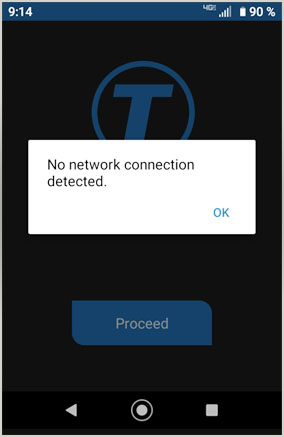
If Transflo Mobile+ cannot detect your network connection, the following message might appear:
No network connection detected.
-
Tap OK.
-
Go to your Android or iOS settings and turn on your data plan connection or a local public or private wireless network (Wi-Fi) connection.
-
Make sure you are not in a tunnel or remote area where your device simply cannot reach the network.
-
Because loads, chat messages, navigation, and document submissions require access to a network, the Transflo Mobile+ app requires your device to have a live data plan or wireless network access.
-
No Internet Connection
-
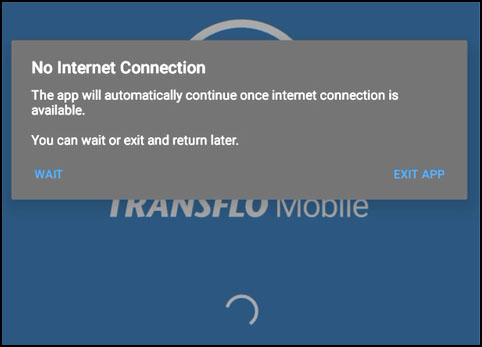
If Transflo Mobile+ cannot detect your network connection, the following message might appear:
No Internet Connection
The app will automatically continue when an internet connection is available.
You can wait or exit and return later.
-
Tap an option:
-
WAIT: Tap this option if you believe your connection signal should soon be strong enough. The app will enter real-time network monitoring mode and will keep trying to connect.
-
EXIT APP: If you are in a remote area, tunnel, or otherwise busy, be patient. You might simply need to exit the app until you can connect to a stronger network or Wi-Fi signal later. Your data network provider might also be experiencing a temporary loss of signal.
-
-
When Transflo Mobile+ detects your network connection, the following screen appears:
-
Dashboard or Home screen: This means you are a registered user and have a network connection.
-
Login screen: This means you have a connection but are not yet registered or need to log in again.
-
Waiting for Connection or Network Error
-
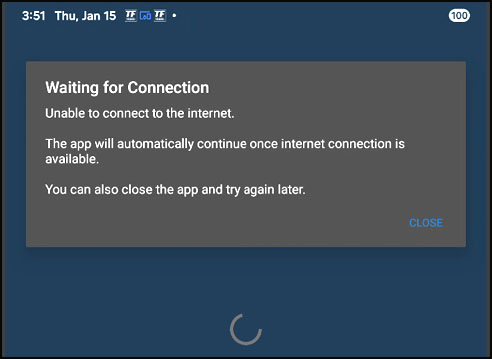
If you tapped WAIT in a previous No Internet Connection message and Transflo Mobile+ still cannot detect your network connection, the following message might appear:
Waiting for Connection
Unable to connect to the internet. The app will automatically continue when an internet connection is available.
You can also close the app and try again later.
-
Choose one:
-
Keep waiting (nothing to tap). The app is already in real-time network monitoring mode and will keep trying to connect. While you are waiting, you could also check the status of your network settings on your phone or tablet.
-
Tap CLOSE to exit the app and try again later.
-
If you are in a remote area, tunnel, or otherwise busy, be patient. You might simply need to close the app until you can connect to a stronger network or Wi-Fi signal later.
-
Your data network provider might also be experiencing a temporary loss of signal.
-
Wi-Fi works only when you are near an access point or mobile hot spot. Unless it is public, you will need a Wi-Fi password to connect your device to a private wireless network.
-
-
Network Error: Try Again
-
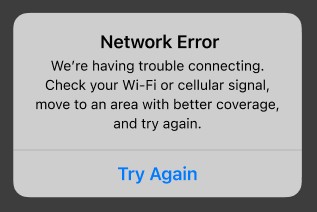
If Transflo Mobile+ cannot detect your network connection, the following message might appear:
Network Error
We're having trouble connecting. Check your Wi-Fi or cellular signal, move to an area with better coverage, and try again.
-
Tap Try Again.
-
Make sure you have established a network connection in your settings:
-
Set up a data network from a major mobile communications company like Verizon, T-Mobile, ATT, and others.
-
Or, you can establish a wireless network (Wi-Fi) connection.
-
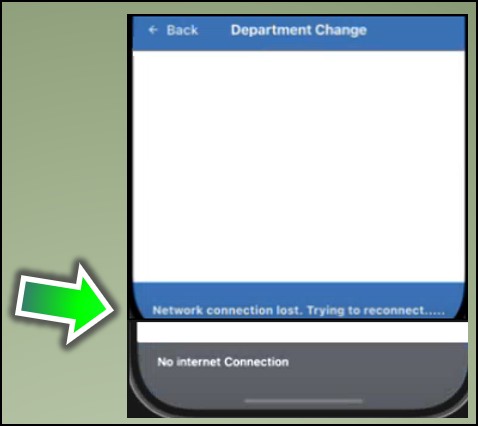
Network Connection Lost, Trying to Reconnect... No Internet Connection
You might see this message at the bottom of a web form in the app.
-
Tap a tile, menu item, or button that opens a web form on your device.
A typical example might be a web form in a step for a load:
-
Open a load, route, or workflow in the new user workflows feature on the Mobile+ app.
-
If you have a step that shows a button to open a web form, tap the button (for example, a Department Change form or an Equipment form).
-
-
If Transflo Mobile+ cannot detect your network connection, the following message might appear at the bottom:
No internet connection
Network connection lost. Trying to reconnect...
-
Choose one:
-
Keep waiting. The app is already in real-time network monitoring mode and will keep trying to connect. While you are waiting, you could also check the status of your network settings on your phone or tablet.
-
Tap Back and try again later.
-
If you are in a remote area, tunnel, or otherwise busy, be patient. You might simply need to close the app until you can connect to a stronger network or Wi-Fi signal later.
-
Your data network provider might also be experiencing a temporary loss of signal.
-
Wi-Fi works only when you are near an access point or mobile hot spot. Unless it is public, you will need a Wi-Fi password to connect your device to a private wireless network.
-
-
-
(Offline Option): In some configurations, you might be able to complete the web form in offline mode. For example, even without a network connection, if your fleet has this special configuration option enabled, you can complete the form and tap Submit. The app will save your data and try to reconnect later.
-
If your fleet has enabled this option, the following message appears:
You're offline! Your form could not be submitted, but we saved it. It will send automatically when you are back online.
-
Tap OK.
-
If the app cannot automatically reconnect, try adjusting your network settings.
Settings vary based on your device and network access. A typical example is given below:
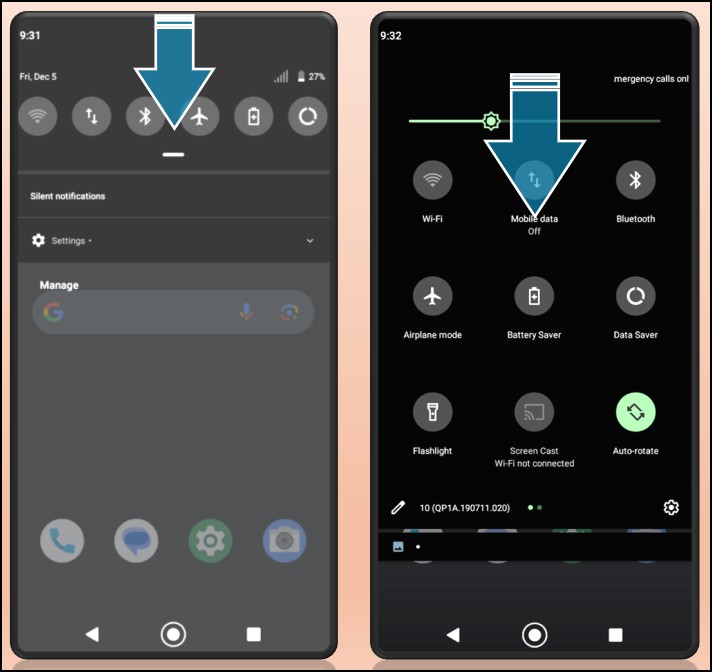
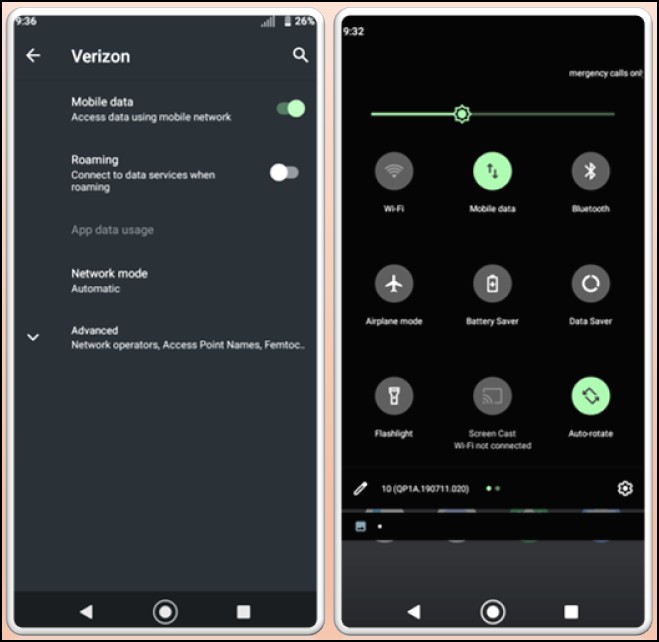
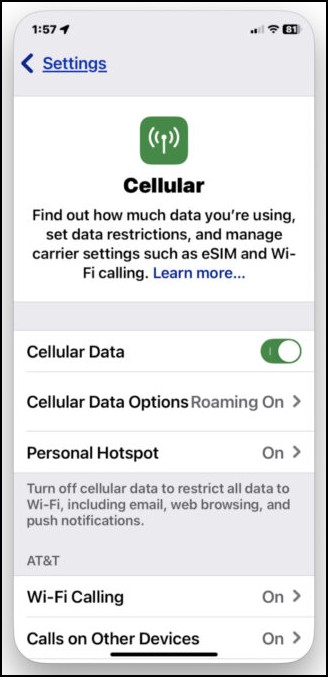
Turn On Your Mobile Data or Wi-Fi Network Settings
-
Go to Settings. The steps and screens vary based on your version of Android OS or iOS.
-
You can turn on mobile data. Also make sure Cellular Roaming is turned ON.
Android Examples:
iOS Example:
-
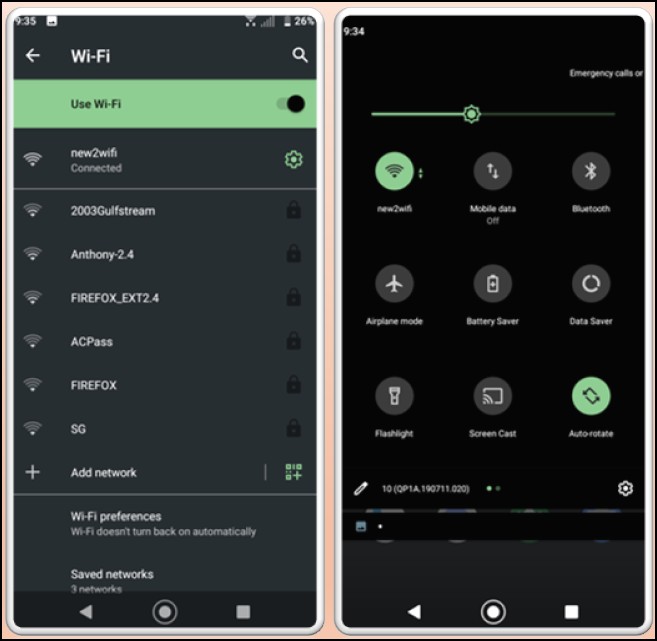
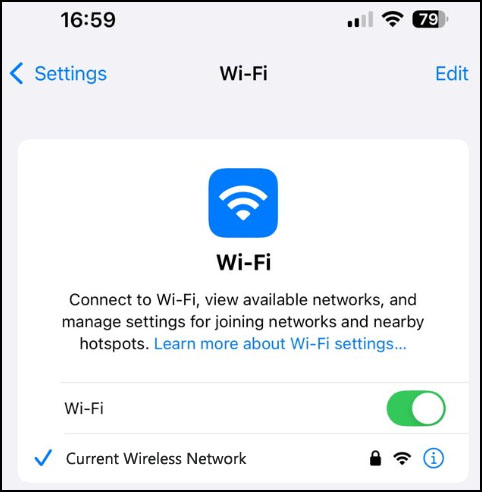
Or you can turn on Wi-Fi.
Android Example:
iOS Example:
-
You can also use both data and Wi-Fi. Your device will auto-switch if needed to keep you connected.


