Download and Print an IFTA Fuel Report [fleet retail retailadmin administrator gtportal]
The IFTA report is a critical tool for managing fuel taxes, and it's important to have accurate and complete data. The IFTA report uses vehicle location data and odometer readings to calculate fuel taxes.
IFTA is an important part of fleet compliance in addition to the ELD mandate and hours of service (HOS) management. The International Fuel Tax Agreement (IFTA) is a fuel tax paid by commercial carriers to fund highway maintenance in 48 U.S. states and 10 Canadian provinces. Transflo Telematics can significantly help with IFTA compliance and reporting by tracking miles and fuel use.
-
Under the IFTA agreement, qualified motor carriers can obtain an IFTA license for their motor vehicles allowing them to travel through other IFTA jurisdictions and submit only one quarterly fuel tax return in their base jurisdiction for fuel usage.
-
If motor carriers are not registered with IFTA The International Fuel Tax Agreement (IFTA) is a fuel tax paid by interstate commercial carriers to fund U.S. and Canada highway maintenance in 48 American jurisdictions (states) and 10 Canadian jurisdictions (provinces) that are currently members of IFTA. Transflo telematics can significantly help with IFTA compliance and reporting by tracking miles and fuel use., they must comply with the fuel tax reporting guidelines of each individual jurisdiction in which they travel, which may include purchasing fuel trip permits.
IFTA reports do not use driver data and do not include information on fuel purchases; however, it is possible to add fuel receipts for IFTA reporting. For the latest updates to the IFTA reporting capabilities, see MyGeotab IFTA Reports and IFTA Report Data Issues.
To view an IFTA report for one or more vehicles and time periods (typically quarterly) and save it as PDF, Excel spreadsheet, or print it on paper, follow these steps:
-
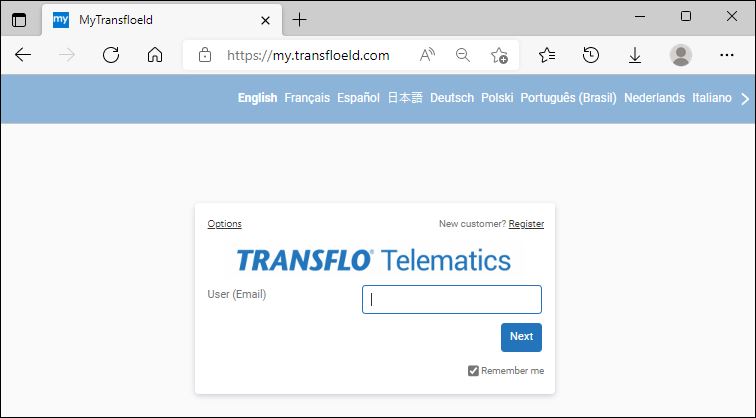
In a web browser, navigate to the Transflo ELD web portal at https://my.transfloeld.com.
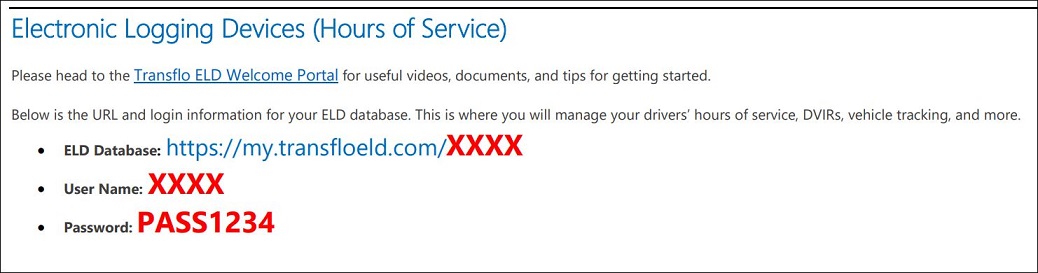
Tip: For fleets or owner-operators, you or your administrator received a welcome e-mail from Transflo (as shown below) with the exact ELD database URL and credentials for your company or fleet account. You may have received a similar e-mail from your administrator. Use the same e-mail and password you used when you registered. If you changed your password, use your updated credentials.
-
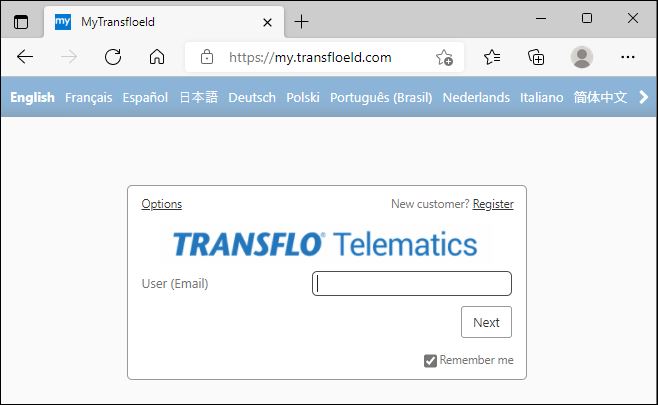
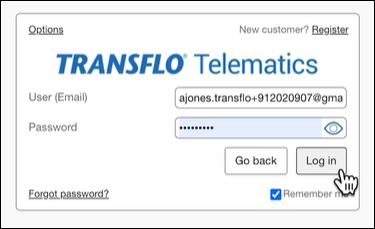
Enter your username (Email) and click Next.
-
Enter your password and click or tap Log in.
-
-
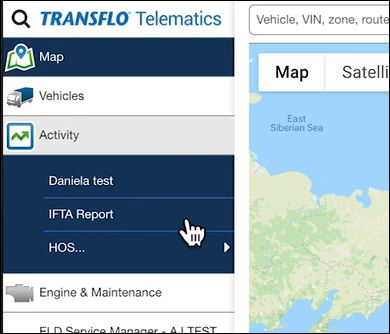
In the left navigation menu, expand Compliance and choose IFTA Report.
-
Select one or more filters for your IFTA report:
-
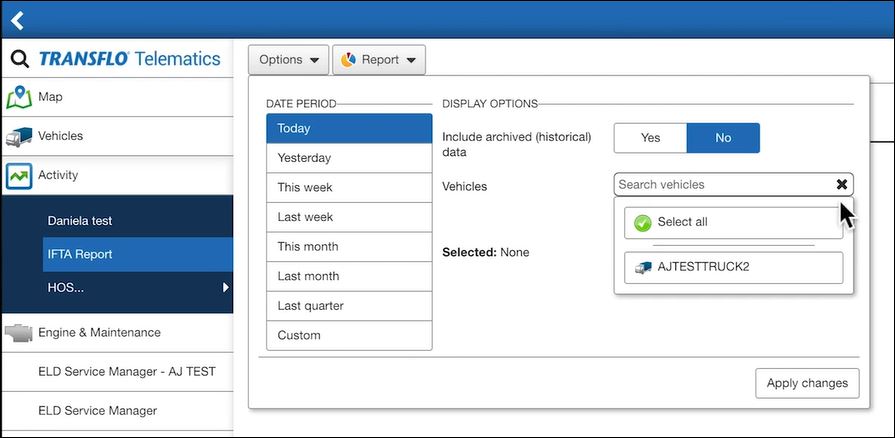
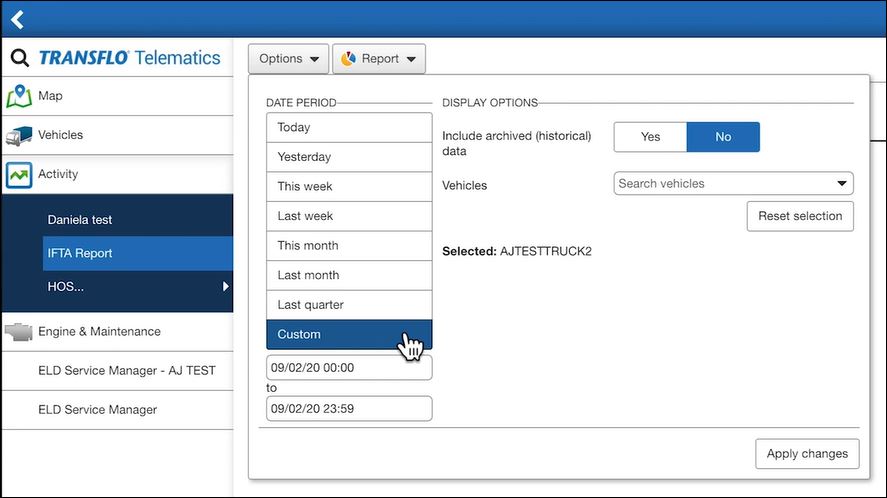
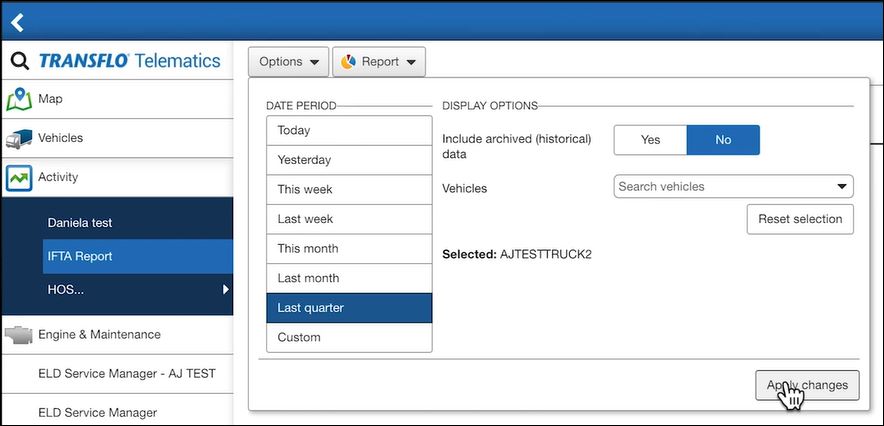
Select the date period for your report. For example, last monthor last quarter. The Custom option allows you to define a Starting Date and an Ending Date for your own custom date range for the report.
-
Select whether you want to Include archived (historical) data.
-
Select one or more Assets (vehicles) to have their mileage measured and included in the report.
-
-
To apply your filters and generate the report, click Apply.
-
The Transflo Telematics web portal generates a quick preview of your IFTA report. Scroll up and down to see the top section and bottom section of the report.
-
The top section shows each jurisdiction in chronological order. The miles are sorted by Jurisdiction (state or province) with the time frame of each trip.
-
The next section (scroll down) shows the miles separated by jurisdiction and includes a grand total and breakdown of the total miles.

Note: If you are looking up a large time frame, the IFTA report shown is only a preview, and you will need to download it to see the full report.
-
-
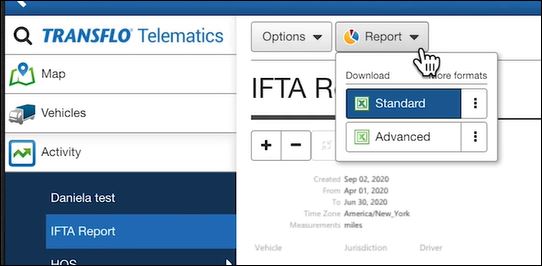
To prepare a download-ready report file, tap the Report button:
-
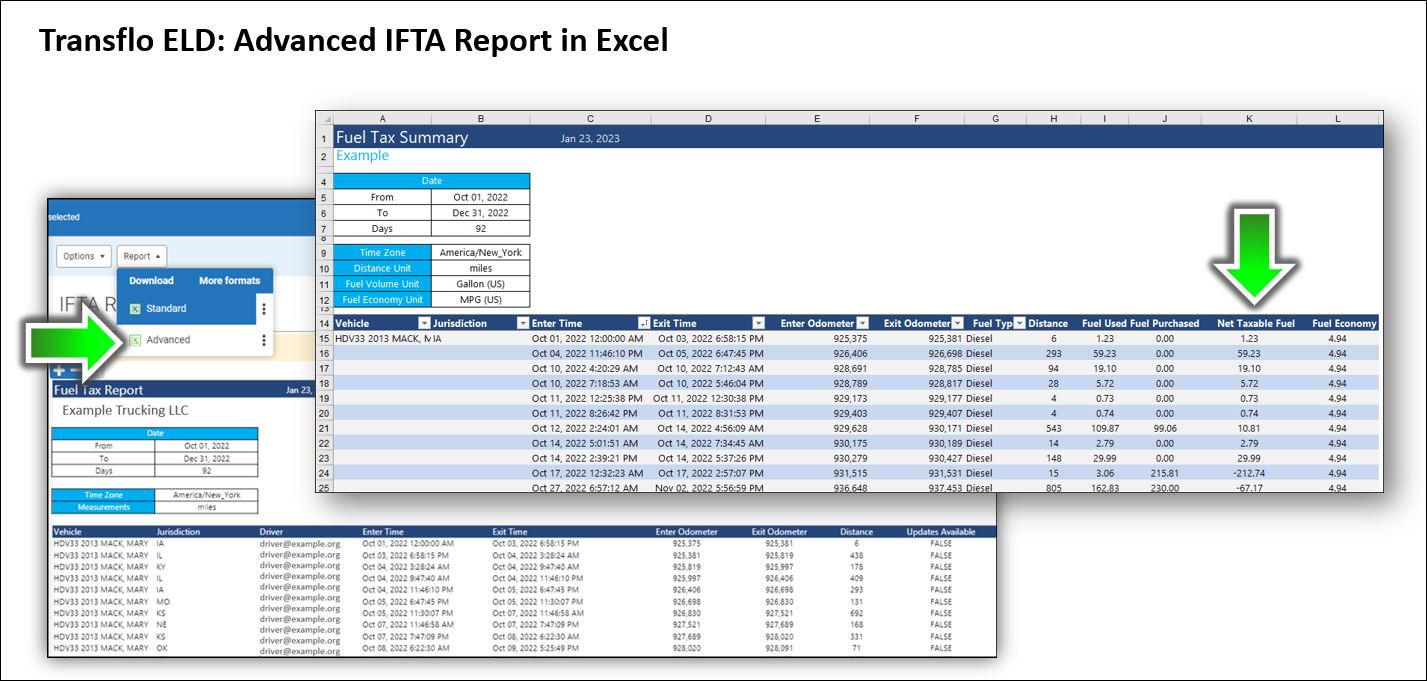
Select the Standard (default) or Advanced formats for Microsoft Excel files. The advanced fuel tax report supports both IFTA and IRP reporting. The spreadsheet format handles larger datasets (up to 100,000 rows) and provides full data access.
-
For other formats, click
 More Formats and select Prepare PDF or View in Browser. The PDF format has a 25,000-row limit and is useful for generating and sharing quick previews.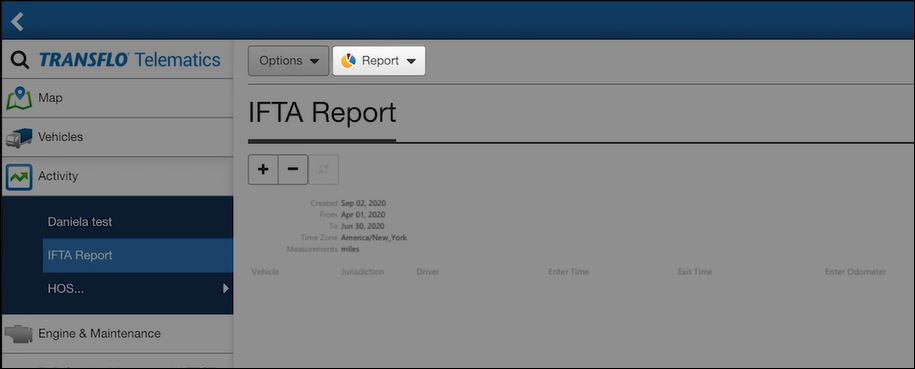
-
-
Reports are generated and organized on the My Reports page. In the left navigation menu, expand Reportsand choose My Reports. When the report status shows Ready, you can download the report.
-
(Optional) To print your report on paper and ink (hardcopy), download the report file in PDF or Excel format. Open your file in another application such as Microsoft Excel or Adobe Acrobat Reader and use the Print Preview feature in those applications to adjust the output for your printer or office copier.
Example:
The following image shows an advanced IFTA report in Microsoft Excel for completing DOT fuel usage forms by state. The report shows Net Taxable Fuel entries and totals by state for fuel usage reporting to the DOT.
 View a demonstration of these steps in one or more Transflo videos:
Although the user interface has been updated, this older video still provides a good general tutorial. For the latest updates to the IFTA reporting capabilities in the Transflo Telematics portal, see MyGeotab IFTA Reports and IFTA Report Data Issues.
keywords: Monthly Miles Report, fuel tax download export print IFTA fuel report


