Edit HOS Logs [fleet retail retailadmin administrator gtportal]
For fleet administrators, training and compliance teams, owner-operators, and advanced experienced drivers only. Only manual logs can be edited; automatic logs cannot be changed to a different duty status.
Manual logs allow you to correct your HOS logs when existing logs are found to be incorrect or incomplete. For example, you can add a manual OFF-duty log for the previous day if the app remained ON-duty after you finished your workday.
-
You can also use manual logs when the status does not automatically change (for example, due to a lost network connection or if you are driving in an area without wireless coverage).
-
You can change an automatic ON-duty log status to OFF, SB, or D.
-
Other examples include creating a manual ON-Duty log for a day that you started at the office, or when the app does not detect driving and places you ON-Duty after an inspection.
-
Manual logs allow you to update any status for a specific date and time, and assign yourself the vehicle you were driving. If you need to add a manual log for any reason, follow the steps below and select the appropriate options.
-
Drivers can edit their hours of service (HOS) logs in the Transflo Mobile+ app or Transflo HOS app (the Geotab HOS features in those apps are the same). As an admin, you would use the Transflo Telematics web portal powered by MyGeotab.
-
You can add or edit manual logs for the past 14 days (USA). For Canadian rulesets, you can add manual logs for the past 28 days. For older logs, use Transflo Telematics (MyGeotab) or ask your admin for help.
Related articles:
Change My Truck, Trailer, Vehicle, or Shipment [retail driver retailadmin administrator tfm hos-app]
View My HOS Duty Status and Cycle Recap [retail driver retailadmin administrator hos-app tfm]
 Common HOS Log Edits
If an administrator makes changes to a driver's logs, such as changing an ON duty log to OFF duty, the driver may still appear to have no available hours. This is because the driver needs to accept the edits made by the administrator. To resolve this, advise the driver to accept the changes on either the Geotab Drive app or the MyGeotab platform (or the Transflo editions of these items). For Transflo customers, the following Transflo apps and platforms provide all the needed features without having to go through Geotab:
-
Transflo HOS app (standalone app for retail customers only)
-
Transflo Mobile+ app (this app includes all the Geotab Drive and HOS app functionality)
-
Transflo MyGeotab Platform at my.transfloeld.com (ask your fleet manager for your database)
Tips and Examples When You Might Need to Edit HOS Logs for a Driver
-
Manual logs allow you to update any duty status for a specific date and time, select the appropriate options for that status, and assign yourself a vehicle.
-
If the app remained ON-duty after you (the driver) finished your workday, you can add a manual OFF-duty log for the previous day.
-
You can also use manual logs when the status does not change automatically, sometimes due to a software or device bug, a bad setting, configuration issues, or when you are driving in an area without wireless network access or data coverage.
-
Other examples include creating a manual ON-duty log for a day that you started at the office, or when the app does not detect driving and places you ON-duty after an inspection.
-
Manually add an OFF duty log for the actual time you (the driver) went off duty. This is a better option than changing the entire log to OFF because drivers need ON duty time at the end of the day to cover paperwork and the post-trip inspection.
-
Unidentified driver logs cannot be edited but can be reassigned to the correct driver if necessary. Contact your administrator. See Edit Driver HOS Logs in the Mobile App [retail driver fleet driver retailadmin administrator hos-app tfm].
-
Drive (D) logs can never be edited.
-
ON duty status logs can be shortened to as little as two (2) seconds with the new duty status being added to fill the remainder of the time gap.
-
Annotations are required to save any changes to logs.
-
You can only reassign logs between co-drivers. You cannot assign a co-driver's logs to a driver who is not their assigned co-driver.
-
Reassigning logs may affect driver availability. The original driver's availability will be recalculated after the logs are reassigned.
-
You cannot reassign exemption logs to another driver.
-
HOS logs in question must already be verified. After any changes, the driver must verify the logs for accuracy again.
Edit Driver HOS Logs in Transflo Telematics [fleet retail retailadmin administrator gtportal]
For administrators only. As a driver, try fixing your logs in your mobile app first. If you need help, contact your administrator who can perform the steps below to correct your logs:
-
Log in to the Transflo Telematics web portal.
https://my.transfloeld.com/your-database-name
-
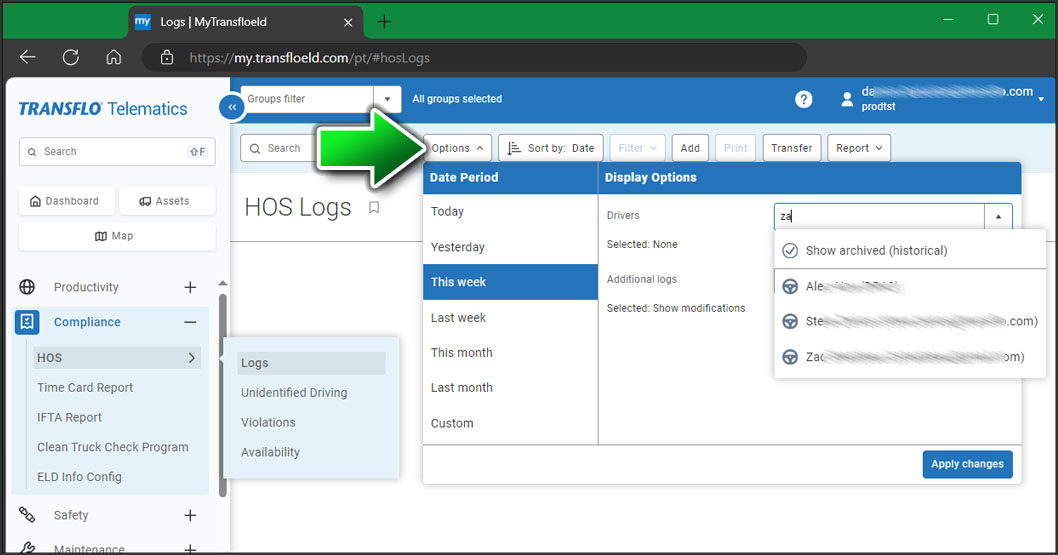
In the left navigation menu, expand Compliance and click HOS, Logs.
-
On the HOS Logs page, apply one or more filters:
-
Select a Date Period such as Today, This Week, Last Week, or define your own custom date range.
-
Select a driver.
-
Click Apply.
-
-
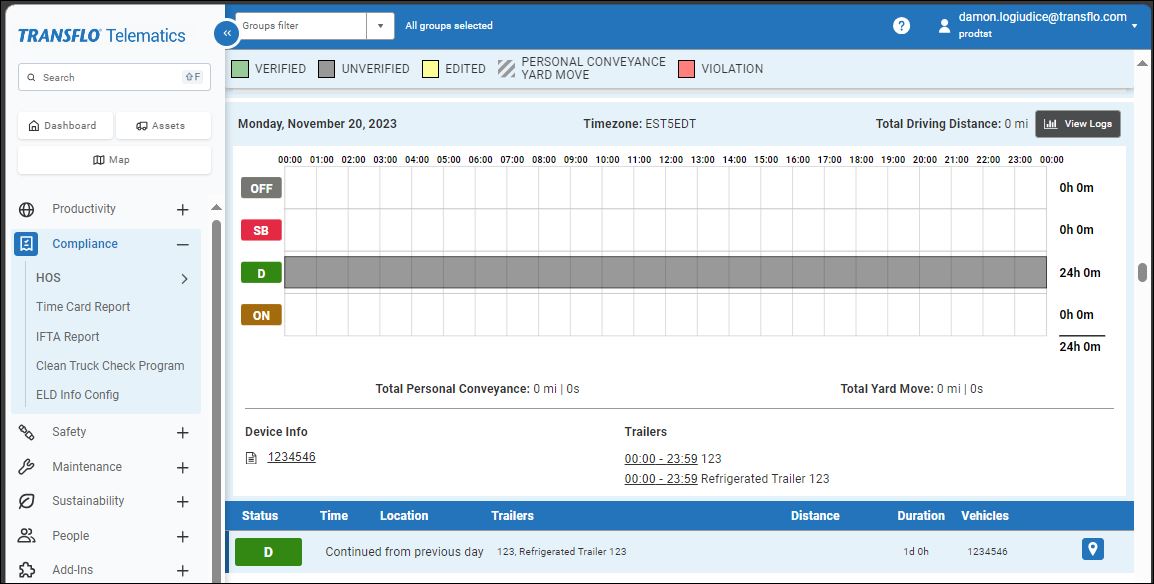
Click a log entry. The log entry summary row appears below the full log for the day. To edit the log entry, click the summary row.
-
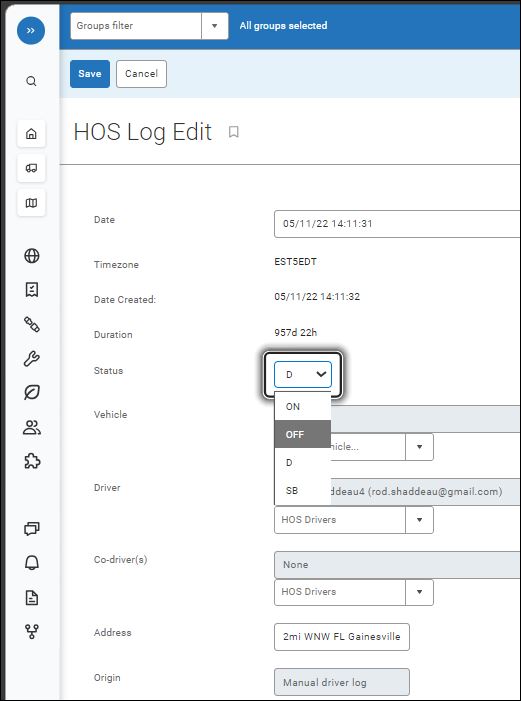
On the HOS Log Edit page, make your edits. For example, change an incorrect Status value to correct it to ON, OFF, D (Drive), or SB (sleeper berth).
-
In the Annotations field, add a note to explain the change.
-
Under Origin, you will be able to identify if this was an Automatic Log or a Manual Log.
-
Go back to the Logs page.
-
To manually add a log, press the + Add HOS Log button.
-
At the top, click Save.
Add a Driver HOS Log [fleet retail retailadmin administrator gtportal]
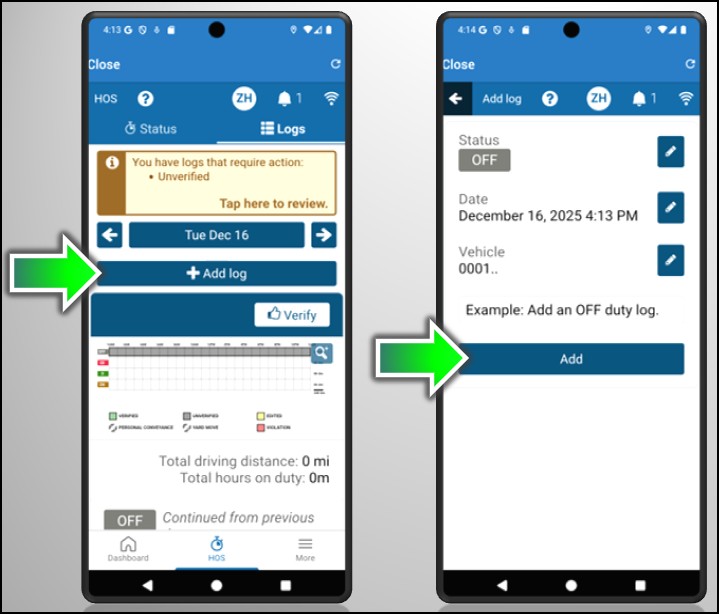
To add a log:
-
Follow the same steps for editing a log except this time tap +Add Log.
-
Set the status, date, time, and vehicle. Enter a required annotation. Tap Add.
Determine if an HOS Log is Automatic or Manual [fleet retail retailadmin administrator gtportal]
Only manual logs can be edited; automatic logs cannot be changed to a different duty status.
-
Manual logs allow you to correct your HOS logs when existing logs are found to be incorrect or incomplete.
-
If you try to change an automatic log, you'll be asked if you want to create a new log after it with the new duty status. This is because automatic logs can't be changed.
-
Log in to your Transflo Telematics or MyGeotab web portal.
-
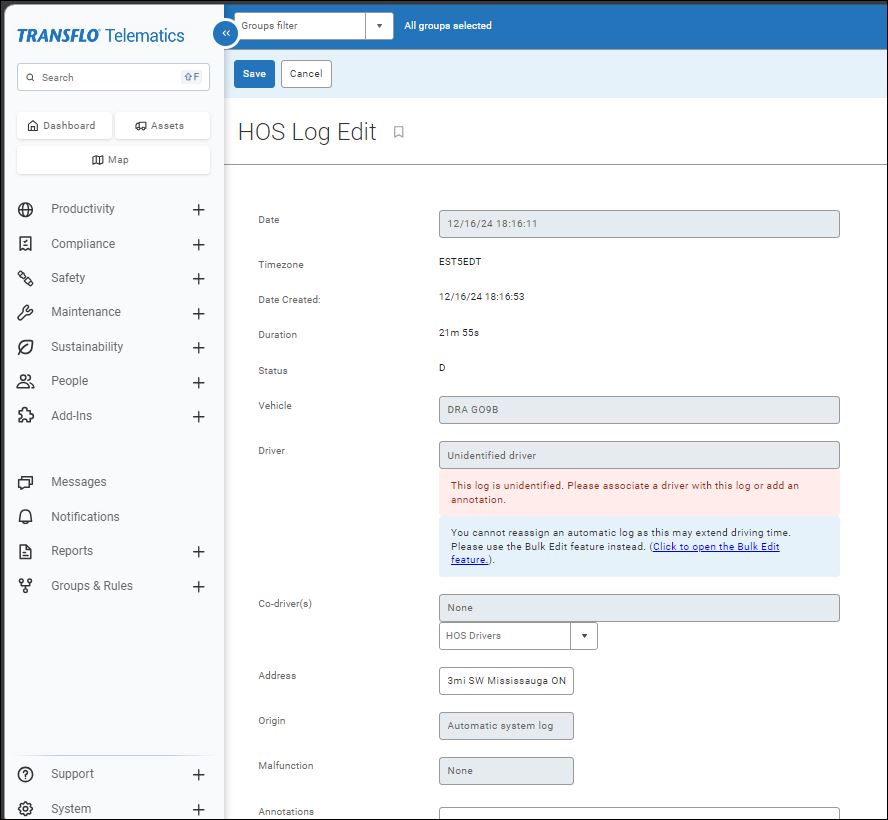
Click on any driver HOS log entry to take you to the HOS Log Edit screen.
-
The Origin field tells you whether the log was created manually or is an Automatic System Log.
-
The Origin for the log is important to help you determine why you can or can't edit a log.
-
An automatic Drive (D) log can never be edited. An automatic ON log can get edited, but never fully edited away—it will always leave a 2 second ON log in place. An automatic Drive log will always need to be paired with an automatic ON log. Any duty status you try to edit the auto-ON log to will get created as a new log after the 2 sec auto-ON log.
-
In contrast, a manual Drive or ON log can get edited entirely to a different duty status.
-
 View a demonstration of these steps in one or more Transflo videos:
Fix log hr status cleanup fix my logs fix status, change HOS logs wrong, driving when I'm not, violation, change from D or ON to sleeper berth, sleeper birth, SB, OFF, cleaned up status


