Print invoices from TMWSuite Billing Desk using Synergize Printer
Use this article to print invoices from TMWSuite Billing Desk using the Synergize Printer.
-
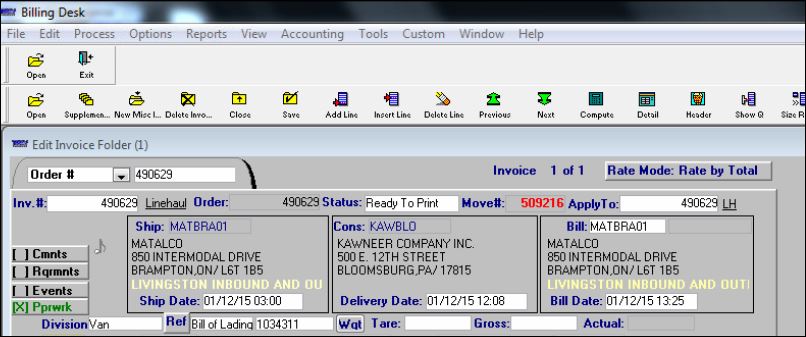
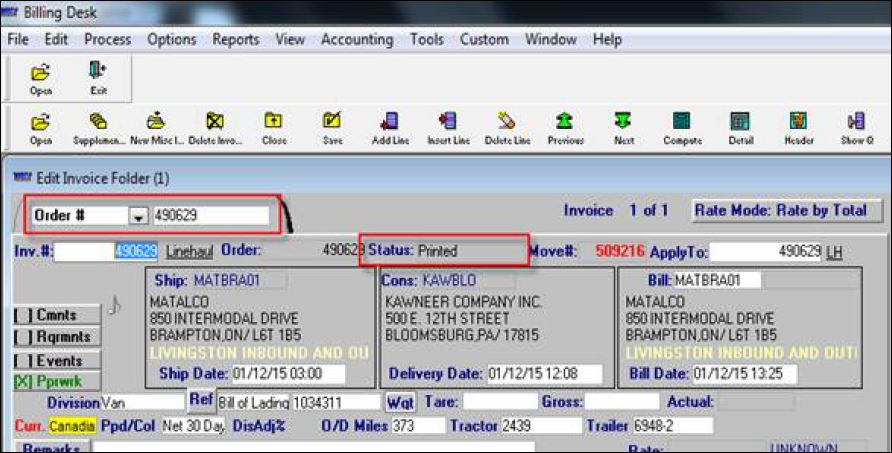
Make sure the Order Number Status is set to Ready to Print
-
Click File > Print.
-
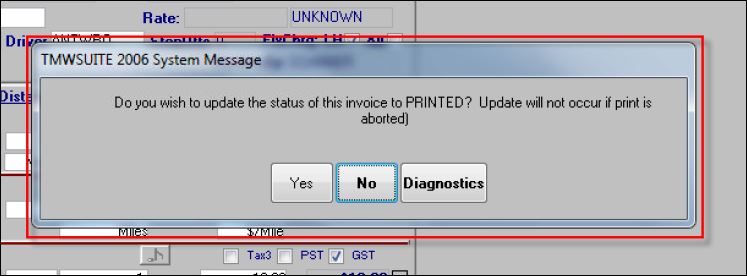
A message asks if you want to update the invoice Status to PRINTED. Click Yes.
-
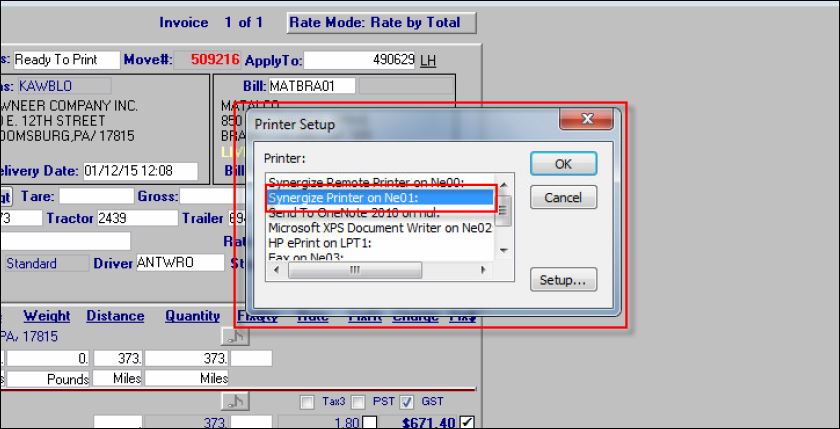
Select the Synergize Printer form the Printer list and click OK.
-
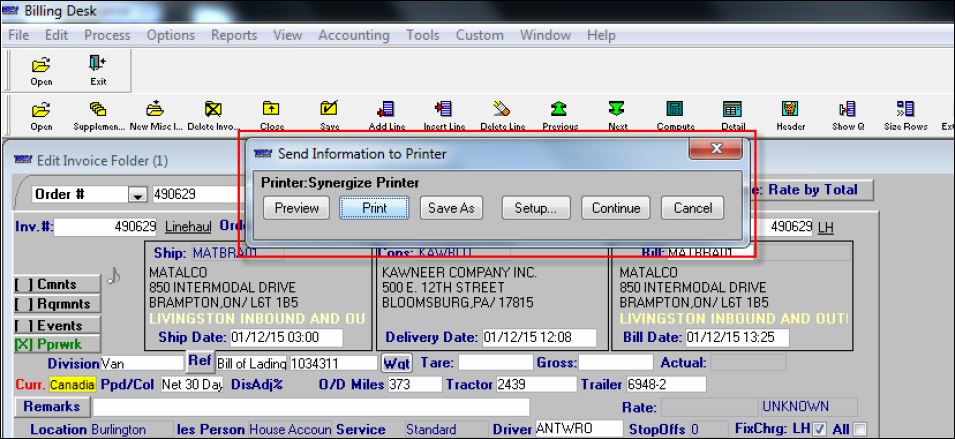
In the Send Information to Printer window, click Print.

Tip: To view the documents being printed, click Preview.
-
The invoice Status field changes to Printed.
-
The resulting printed document should have the following format:
PegControlNumber_JobId.tif
Example:
Related Articles:
How To: Change an order number status from “Printed” to “Ready to Print” in TMWSuite Billinkg Desk
How To: Check which supporting documents will be print/email along with the invoice in TMWSuite

Was this help page helpful? To help us improve the documentation, click the Feedback... button at the top of this page and send us your praise or suggestions to make it even better.
 Yes (you found what you needed)
 No (you did not find what you needed)
Are you a carrier, broker, shipper, fleet manager, or 3PL administrator? Are you one of the 3.2 million professional drivers who rely on the Transflo Mobile+ app to deliver an average of 46+ million loads per year for 81 percent of the top 250 fleets and 80 percent of the top 10 freight brokers? As a leader in mission-critical automated supply chain solutions, Transflo processes over 4 million communications for carriers, shippers, and brokers each week, 52 weeks per year!
Transflo would love your feedback on our solutions and the support we provide to you!
Please take a moment to write a Google review about your experience with Transflo solutions, service, and support.
©2026 TRANSFLO®— a Pegasus Transtech Company
All rights reserved. Transflo believes the information in this publication is accurate as published; however, information is subject to change without notice. Use, copying, and distribution of any TRANSFLO software described in this publication requires an applicable software license. THE INFORMATION IN THIS PUBLICATION IS PROVIDED “AS IS.” TRANSFLO, LLC MAKES NO REPRESENTATIONS OR WARRANTIES OF ANY KIND WITH RESPECT TO THE INFORMATION IN THIS PUBLICATION, AND SPECIFICALLY DISCLAIMS IMPLIED WARRANTIES OF MERCHANTABILITY OR FITNESS FOR A PARTICULAR PURPOSE. Transflo makes this content available for your information only, as a courtesy. Transflo and its partners have made efforts to ensure the accuracy and completeness of the information in the available articles. However, Transflo makes no explicit or implied warranties of any kind with respect to this information. Transflo assumes no liability to any party for any loss or damage (whether direct or indirect) caused by any errors, omissions, or inaccuracies in the information, arising from your application or use of the information. As a convenience to users, the Google Translate API can be used to translate this information into languages other than English. Transflo and its partners assume no responsibility or liability for any errors or inaccuracies in any of these translations. Transflo content appearing in third-party AI chat bots and other third-party sites might not be accurate. For the latest updates about Transflo products, visit transflo.com and knowledge.transflo.com. Use subject to our privacy policy.