Delete a Document Field from Synergize
Use this article to fully delete a field from Synergize. The field is removed or purged when you complete all parts and steps below.
 Part I: Delete the Field from the SQL Database
-
Verify you backed up the SQL database. For more information on SQL backups, contact your IT department.
-
Stop the SCS and SPS services.
-
To remove the field from SQL, log into SQL Management Studio and view the Main table design.
-
Click Databases -> *your Syn repository* -> Tables -> Main.
-
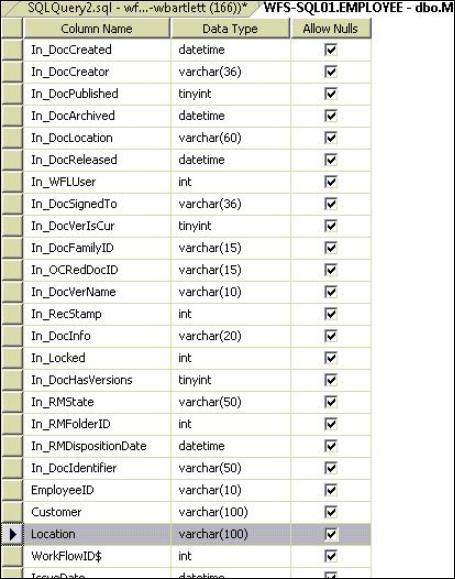
Right click on dbo.Main and select Design. Review the list of fields to find the one you want to remove.
-
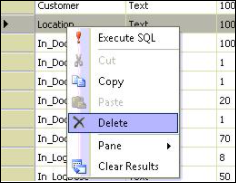
Right-click in the row for the field you want to remove and select Delete.
Part II: Edit the Field Description Table
-
Navigate to Databases -> *your Syn repository* -> Tables -> FieldsDesc.
-
Right-click on dbo.FieldsDesc and select Edit Top 200 Rows.
-
Right-click the required row and choose Delete.
Part III: Edit the Field Values Table and then Remove the Field
-
Navigate to Databases -> *your Syn repository* -> Tables -> FieldValues.
-
Right click on dbo.FieldValues and select ‘Edit Top 200 Rows’
-
Search for the field name in FieldValue and delete it. To assist with finding where it is located, try using a query as shown below. In the following example, we want to remove the Location field:

Once found, remove the field name along with the trailing comma:
Location,
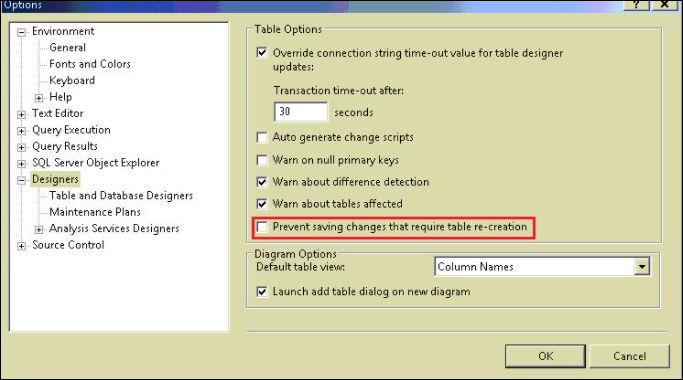
Note: If you receive an error when trying to make changes to the table, go to Tools -> Options -> Designers and clear the Prevent saving changes that require table re-creation option.
Part IV: Remove Dynamic Fields from SPS
-
Go to the following directory:
C:\Program Files (x86)\Microdea\Synergize Process Server
-
Make a copy of the Processes folder and rename it to Processes – BACKUP.
-
Open each process with a text editor such as Notepad.
-
Press Ctrl+F to open a text search for the required field. Search for the field.
Your text editor should go to the following line:
<dynamic name="Location" type="System.String" />
-
Delete this row and any other similar lines that contain the field name to be deleted.
-
Save and close the process.
-
If the field name is not found, close the process and move on to the next process. Repeat steps 3, 4, and 5 for all remaining processes, skipping those that do not have the field name
-
Restart IIS, start the SCS service, and then start the SPS service.
-
Open EMC and refresh the COM+ and COM+ admin applications.
-
In EMC, go to the repository where the changes have been made and click the Fields node.
-
Verify the field has been removed.
-
Open SPS and select one of the processes with an action where document fields are edited.
-
Verify the field has been removed.
-
Test Web Explorer by logging in with both primaryuser (Synergize admin) and normal user accounts.
-
If no fields are seen when logged in with a normal user account, saved preferences no longer exist.
-
Log out of Synergize.
-
Before logging back in, verify that the Login with the default preferences option is selected.
-
Reconfigure preferences. To save changes and log out, click Exit (door icon) at the top of the page.


